YugabyteDB Anywhere allows you to create a universe in one geographic region across multiple availability zones using a provider configuration.
For specific scenarios such as creating large numbers of tables, high rates of DDL change, and so on, consider creating a universe with dedicated nodes for YB-Master processes. Refer to [Create a universe with dedicated nodes](../dedicated-master/) for more details.
For information on modifying or scaling an existing universe, refer to [Modify universe](../../manage-deployments/edit-universe/).
## Prerequisites
Before you start creating a universe, ensure that you have created a provider configuration as described in [Create provider configurations](../../configure-yugabyte-platform/).
### Configure ClockBound (optional)
{{}}[ClockBound](https://github.com/aws/clock-bound) improves clock accuracy and reduces read-restart errors in YSQL. To enable ClockBound for [cloud provider](../../configure-yugabyte-platform/aws/) universes, set the provider's `yb.provider.configure_clockbound_cloud_provisioning` runtime configuration flag to `true` (before creating the universe). Refer to [Manage runtime configuration settings](../../administer-yugabyte-platform/manage-runtime-config/).
When enabled, ClockBound is automatically configured during node provisioning, and the universe creation task sets the [time_source](../../../reference/configuration/yb-master/#time-source) flag to `clockbound`.
ClockBound is supported on AWS and GCP. Azure and Kubernetes deployments are not supported.
## Create a universe
To create a universe:
1. Navigate to **Dashboard** or **Universes**, and click **Create Universe**.
1. Enter the universe details. Refer to [Universe settings](#universe-settings).
1. To add a read replica, click **Configure Read Replica**. Refer to [Create a read replica cluster](../read-replicas/).
1. Click **Create** when you are done and wait for the configuration to complete.
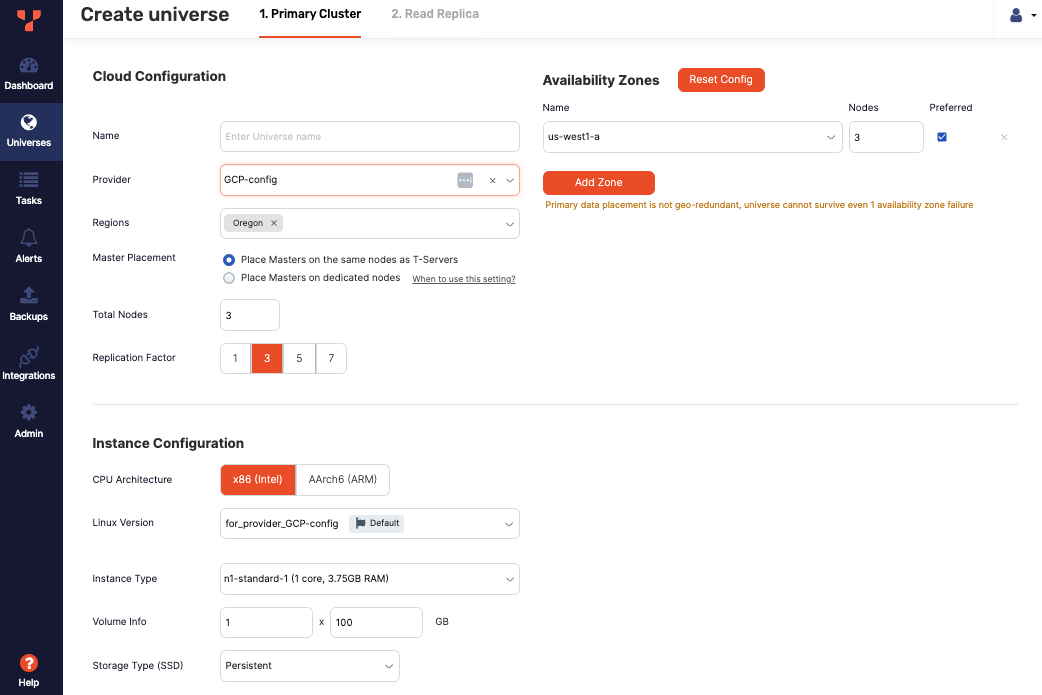
## Universe settings
### Cloud Configuration
Specify the provider and geolocations for the nodes in the universe:
- Enter a name for the universe.
- Choose the [provider configuration](../../configure-yugabyte-platform/) to use to create the universe.
- Select the regions in which to deploy nodes. The available regions will depend on the provider you selected.
- Specify the master placement for the YB-Master processes. Refer to [Create a universe with dedicated nodes](../dedicated-master/) for more details.
- Enter the number of nodes to deploy in the universe. When you provide the value in the **Nodes** field, the nodes are automatically placed across all the availability zones to guarantee the maximum availability.
- Select the [replication factor](../../../architecture/docdb-replication/replication/#replication-factor) for the universe.
- Configure the availability zones where the nodes will be deployed by clicking **Add Zone**.
- Use the **Preferred** setting to set the [preferred zone or region](../../../explore/multi-region-deployments/synchronous-replication-yba/#preferred-region).
### Instance Configuration
Specify the instance to use for the universe nodes:
- Choose the **CPU Architecture**, either x86 (Intel) or AArch6 (ARM).
- Choose the **Linux version** to be provisioned on the nodes of the universe.
This option only applies if you have selected an AWS, GCP, or Azure provider configuration. The available Linux versions are specified in the provider.
If you are performing an airgapped installation, you cannot use YBA-Managed Linux versions; you must use a custom image. Do the following before creating your universe:
1. Create a custom Linux version (AMI) that includes all of the software pre-requisites, including [additional software for airgapped deployment](../../prepare/server-nodes-software/#additional-software-for-airgapped-deployment).
1. Add your custom Linux version to the universe provider configuration **Linux Version Catalog**.
Refer to [Create cloud provider configuration](../../configure-yugabyte-platform/aws/).
- Select the **Instance Type** to use for the nodes in the universe.
- Specify the number and size of the storage volumes, and the storage type.
#### Additional AWS fields
- Choose the AWS **EBS Type** between IO1, IO2, GP2, and GP3.
- Specify the **Provisioned IOPS** (IO1, IO2, and GP3 only) and **Provisioned Throughput** (GP3 only) for your disk in advance to ensure a consistent performance level.
- {{}}Enable **EBS Volume Encryption** (AWS only) to create a universe with AWS EBS volume-level encryption, using a custom AWS Key Management Service (KMS) configuration.
Select the **Key Management Service Config** you created. See [Create a KMS configuration](../../security/create-kms-config/aws-kms/#create-a-kms-configuration).
While in Early Access, EBS Volume Encryption is not available in YugabyteDB Anywhere by default. To make it available, set the _Allow Cloud Volume Encryption_ Global Runtime Configuration option (config key `yb.universe.allow_cloud_volume_encryption`) to true. Refer to [Manage runtime configuration settings](../../../yugabyte-platform/administer-yugabyte-platform/manage-runtime-config/). You must be a Super Admin to set global runtime configuration flags.
You can use AWS EBS volume-level encryption and YugabyteDB Anywhere envelope [Encryption at rest](../../security/enable-encryption-at-rest/) (EAR) at the same time. Configure each one with its own KMS config; you cannot use the same KMS config for both.
Currently, you cannot use EBS volume-level encryption for multi-region universe deployments, because an instance in one region cannot access the KMS key in another region.
### Security Configurations
#### IP Settings
To enable public access to the universe, select the **Assign Public IP** option.
#### Authentication Settings
Enable the YSQL and YCQL endpoints and database authentication.
Enter the password to use for the default database admin superuser (for YSQL the user is `yugabyte`, and for YCQL `cassandra`). Be sure to save your password; the password is not saved in YugabyteDB Anywhere. For more information, refer to [Database authorization](../../security/authorization-platform/).
By default, the API endpoints use ports 5433 (YSQL) and 9042 (YCQL). You can [customize these ports](#advanced-configuration).
#### Encryption Settings
Enable encryption in transit to encrypt universe traffic. You can enable the following:
- **Node-to-Node TLS** to encrypt traffic between universe nodes.
- **Client-to-Node TLS** to encrypt traffic between universe nodes and external clients.
Note that if you want to enable Client-to-Node encryption, you first must enable Node-to-Node encryption.
Encryption requires a certificate. YugabyteDB Anywhere can generate a self-signed certificate automatically, or you can use your own certificate.
To use your own, you must first add it to YugabyteDB Anywhere; refer to [Add certificates](../../security/enable-encryption-in-transit/add-certificate-self/).
To have YugabyteDB Anywhere generate a certificate for the universe, use the default **Root Certificate** setting of **Create New Certificate**. To use a certificate you added or a previously generated certificate, select it from the **Root Certificate** menu.
For more information on using and managing certificates, refer to [Encryption in transit](../../security/enable-encryption-in-transit/).
To encrypt the universe data, select the **Enable encryption at rest** option and select the [KMS configuration](../../security/create-kms-config/aws-kms/) to use for encryption. For more information, refer to [Encryption at rest](../../security/enable-encryption-at-rest/).
### Advanced Configuration
DB Version
: Choose the version of YugabyteDB to install on the nodes. If the version you want to add is not listed, you can add it to YugabyteDB Anywhere. Refer to [Manage YugabyteDB releases](../../manage-deployments/ybdb-releases/).
Access key
: The access key is the SSH key that is created in the provider. Usually, each provider has its own access key, but if you are reusing keys across providers, they are listed here.
Instance Profile ARN
: For AWS providers, you can assign an ARN to the nodes in the universe; this allows them to be seamlessly backed up without explicit credentials.
Enhanced Postgres Compatibility
: If database version is v2024.2 or later, you can enable early access features for PostgreSQL compatibility. For more information, refer to [Enhanced PostgreSQL Compatibility Mode](../../../reference/configuration/postgresql-compatibility/).
: For new universes running v2025.2 or later, note that the following features are _enabled by default_ when you deploy using YugabyteDB Anywhere:
- [Read committed](../../../architecture/transactions/read-committed/)
- [Cost-based optimizer](../../../best-practices-operations/ysql-yb-enable-cbo/)
- [Auto Analyze](../../../additional-features/auto-analyze/)
- [YugabyteDB bitmap scan](../../../reference/configuration/postgresql-compatibility/#yugabytedb-bitmap-scan)
- [Parallel append](../../../additional-features/parallel-query/)
Enable Connection Pooling
: {{}}If database version is v2024.2 or later, you can enable [Built-in connection pooling](../../../additional-features/connection-manager-ysql/).
: While in Early Access, connection pooling is not available by default. To make the feature available, set the *Allow users to enable or disable connection pooling* Global Runtime Configuration option (config key `yb.universe.allow_connection_pooling`) to true. Refer to [Manage runtime configuration settings](../../administer-yugabyte-platform/manage-runtime-config/). You must be a Super Admin to set global runtime configuration flags.
Override Deployment Ports
: To customize the [ports used for the universe](../../prepare/networking/), select the **Override Deployment Ports** option and enter the custom port numbers for the services you want to change. Any value from `1024` to `65535` is valid, as long as it doesn't conflict with anything else running on nodes to be provisioned.
### G-Flags
Optionally, add configuration flags for your YB-Master and YB-TServer nodes. You can also set flags after universe creation. Refer to [Edit configuration flags](../../manage-deployments/edit-config-flags/).
### User Tags
The instances created on a cloud provider can be assigned special metadata to help manage, bill, or audit the resources. You can define these tags when you create a new universe, as well as modify or delete tags of an existing universe. Refer to [Create and edit instance tags](../../manage-deployments/instance-tags/).
## Examine the universe
After the universe is ready, its **Overview** tab should appear similar to the following illustration:
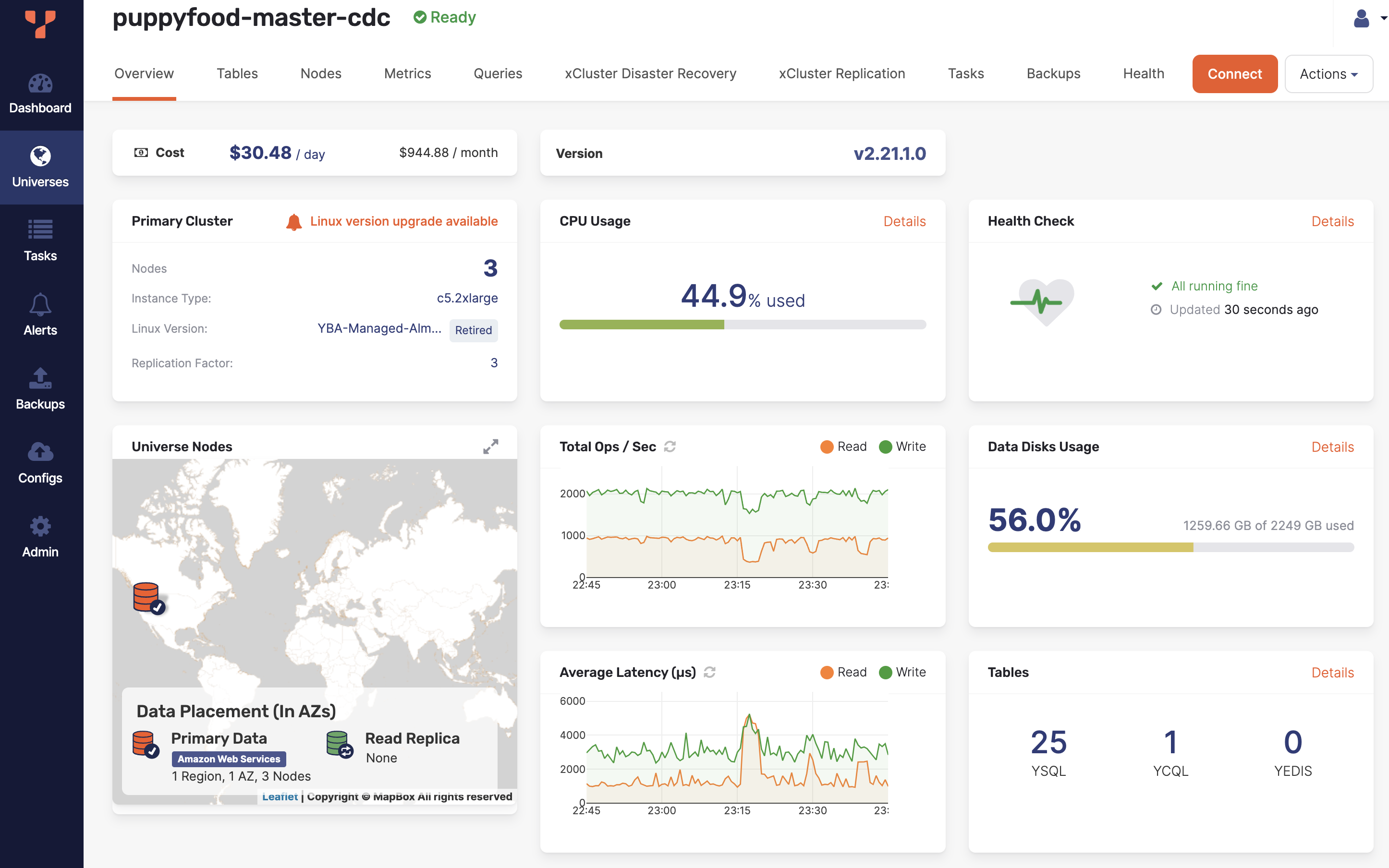
The **Universes** view allows you to examine various aspects of the universe:
- **Overview** provides the information on the current YugabyteDB Anywhere version, the number of nodes included in the primary cluster, the cost associated with running the universe, the CPU and disk usage, the geographical location of the nodes, the operations per second and average latency, the number of different types of tables, as well as the health monitor.
- **Tables** provides details about YSQL and YCQL tables included in the universe. Table sizes are calculated across all the nodes in the cluster.
- **Nodes** provide details on nodes included in the universe and allows you to perform actions on a specific node (connect, stop, remove, display live and slow queries, download logs). You can also use **Nodes** to open the cloud provider's instances page. For example, in case of GCP, if you navigate to **Compute Engine > VM Instances** and search for instances that contain the name of your universe in the instances name, you should see a list of instances.
- **Metrics** displays graphs representing information on operations, latency, and other parameters for each type of node and server.
- **Queries** displays details about live and slow queries that you can filter by column and text.
- **xCluster Disaster Recovery** provides information about any [disaster recovery](../../back-up-restore-universes/disaster-recovery/) configured for the universe.
- **xCluster Replication** provides information about any [asynchronous replication](../../manage-deployments/xcluster-replication/) in the universe.
- **Tasks** provides details about the state of tasks running on the universe, as well as the tasks that have run in the past against this universe.
- **Backups** displays information about scheduled backups, if any, and allows you to create, restore, and delete backups.
- **Health** displays the detailed performance status of the nodes and components involved in their operation. **Health** also allows you to pause health check alerts.