Before you can deploy universes to OpenShift using YugabyteDB Anywhere (YBA), you must create a provider configuration.
## Prerequisites
To create a YugabyteDB universe using the deployed YBA, you start by creating the required role-based access control (RBAC) and adding the provider.
### Create RBAC
Set the `YBA_NAMESPACE` environment variable to the project where your YBA is installed, as follows:
```sh
export YBA_NAMESPACE="yb-platform"
```
Note that the `YBA_NAMESPACE` variable is used in the commands throughout this document.
To create a service account in the yb-platform project, execute the following command:
```shell
export YBA_NAMESPACE="yb-platform"
oc apply \
-n ${YBA_NAMESPACE} \
-f https://raw.githubusercontent.com/yugabyte/charts/master/rbac/yugabyte-platform-universe-management-sa.yaml
```
Expect the following output:
```output
serviceaccount/yugabyte-platform-universe-management created
```
The next step is to grant access to this service account using Roles and RoleBindings, thus allowing it to manage the YugabyteDB universe's resources for you. If you are creating clusters across multiple namespaces, you need to create Roles and RoleBindings in each namespace where you intend to create and deploy the universe. Alternatively, you can create ClusterRoles and ClusterRoleBindings which will allow you to create universes in all the namespaces. For more information, see [Platform Global](https://github.com/yugabyte/charts/tree/master/rbac#a-platform-globalyaml) and [Platform Namespaced](https://github.com/yugabyte/charts/tree/master/rbac#c-platform-namespacedyaml) sections from the RBAC resources documentation.
To create the required RBAC objects, execute the following command:
```shell
export YBA_NAMESPACE="yb-platform"
curl -s https://raw.githubusercontent.com/yugabyte/charts/master/rbac/platform-namespaced.yaml \
| sed "s/namespace: /namespace: ${YBA_NAMESPACE}/g" \
| oc apply -n ${YBA_NAMESPACE} -f -
```
Expect the following output:
```output
role.rbac.authorization.k8s.io/yugabyte-helm-operations created
role.rbac.authorization.k8s.io/yugabyte-management created
rolebinding.rbac.authorization.k8s.io/yugabyte-helm-operations created
rolebinding.rbac.authorization.k8s.io/yugabyte-management created
```
### Create kubeconfig file
The next step is to create a `kubeconfig` file for this service account. The `kubeconfig` file is used by YBA to create universes in the OpenShift Container Platform (OCP) cluster.
You download a helper script for generating a `kubeconfig` file by executing the following command:
```shell
wget https://raw.githubusercontent.com/YugaByte/charts/master/stable/yugabyte/generate_kubeconfig.py
```
To generate the `kubeconfig` file, execute the following:
```shell
export YBA_NAMESPACE="yb-platform"
python generate_kubeconfig.py \
--service_account yugabyte-platform-universe-management \
--namespace ${YBA_NAMESPACE}
```
Expect the following output:
```output
Generated the kubeconfig file: /tmp/yugabyte-platform-universe-management.conf
```
The `kubeconfig` file needs to be generated for each OpenShift cluster if you are doing a multi-cluster setup.
## Configure OpenShift
Navigate to **Integrations > Infrastructure > Red Hat OpenShift** to see a list of all currently configured Kubernetes providers.
This lists all currently configured OpenShift providers.
To create an OpenShift provider, click **Create Kubernetes Config**. For more information, refer to [Create a provider](../kubernetes/#create-a-provider).
### Provider settings
Set the **Kubernetes Provider Type** to Red Hat OpenShift.
For information on the Kubernetes Provider settings, refer to [Provider settings](../kubernetes/#provider-settings).
### Create the configuration
Click **Create Provider Configuration** to save the configuration. If your configuration is successful, you should see the newly-added provider under **Red Hat OpenShift Configs**.
## Create a universe using the provider
You can create a universe using the provider as follows:
- Use YBA UI to navigate to **Universes**, and then click **Create Universe**.
- Complete the **Create Universe** page shown in the following illustration by entering the following information:
- In the **Name** field, enter universe-1.
- In the **Provider** field, enter ocp-test.
- In the **Regions** field, enter US East.
- In the **Instance Type** field, enter xsmall (2 cores, 4GB RAM).
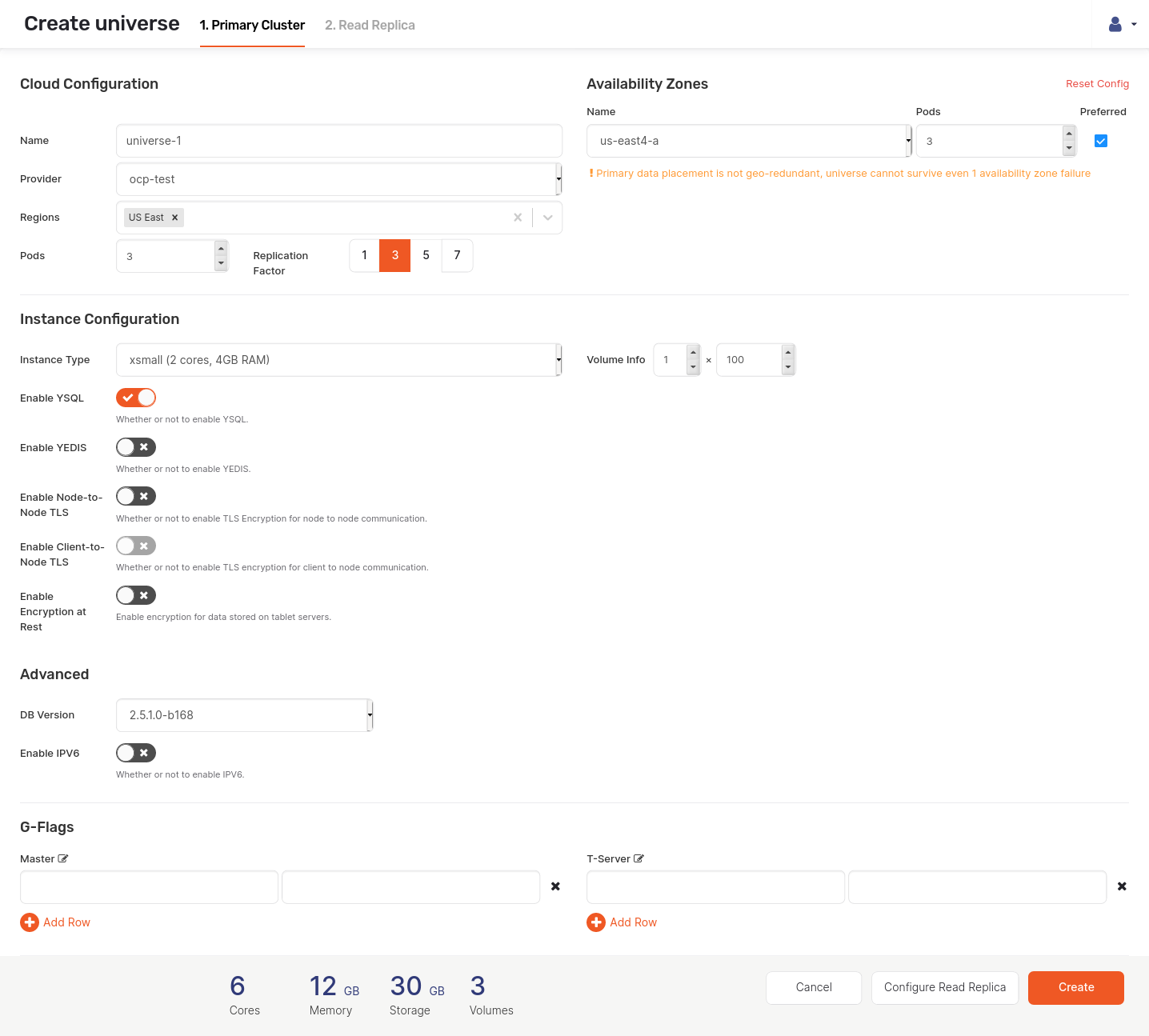
- Click **Create**.
The following illustration shows the universe creation progress:
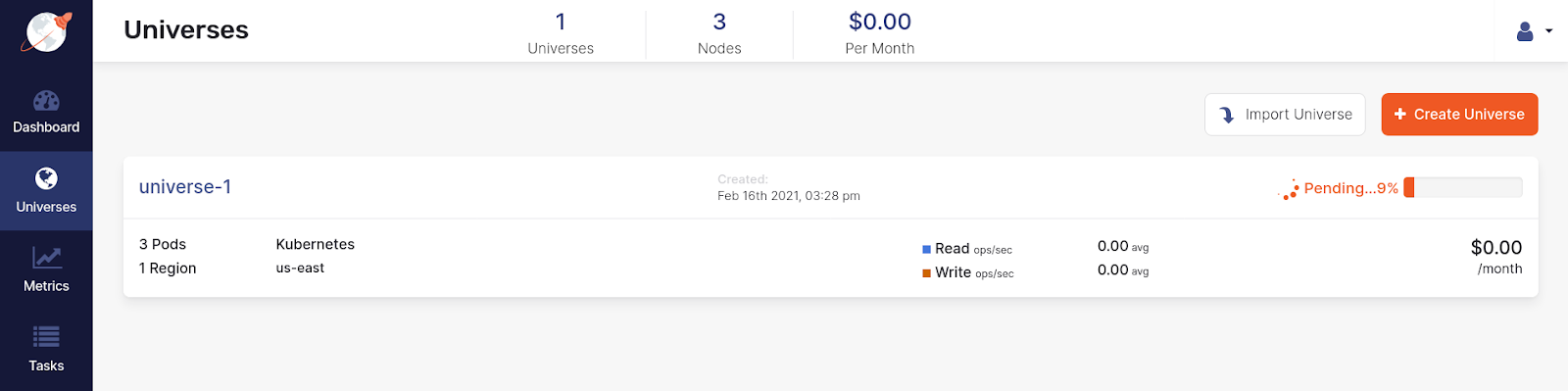
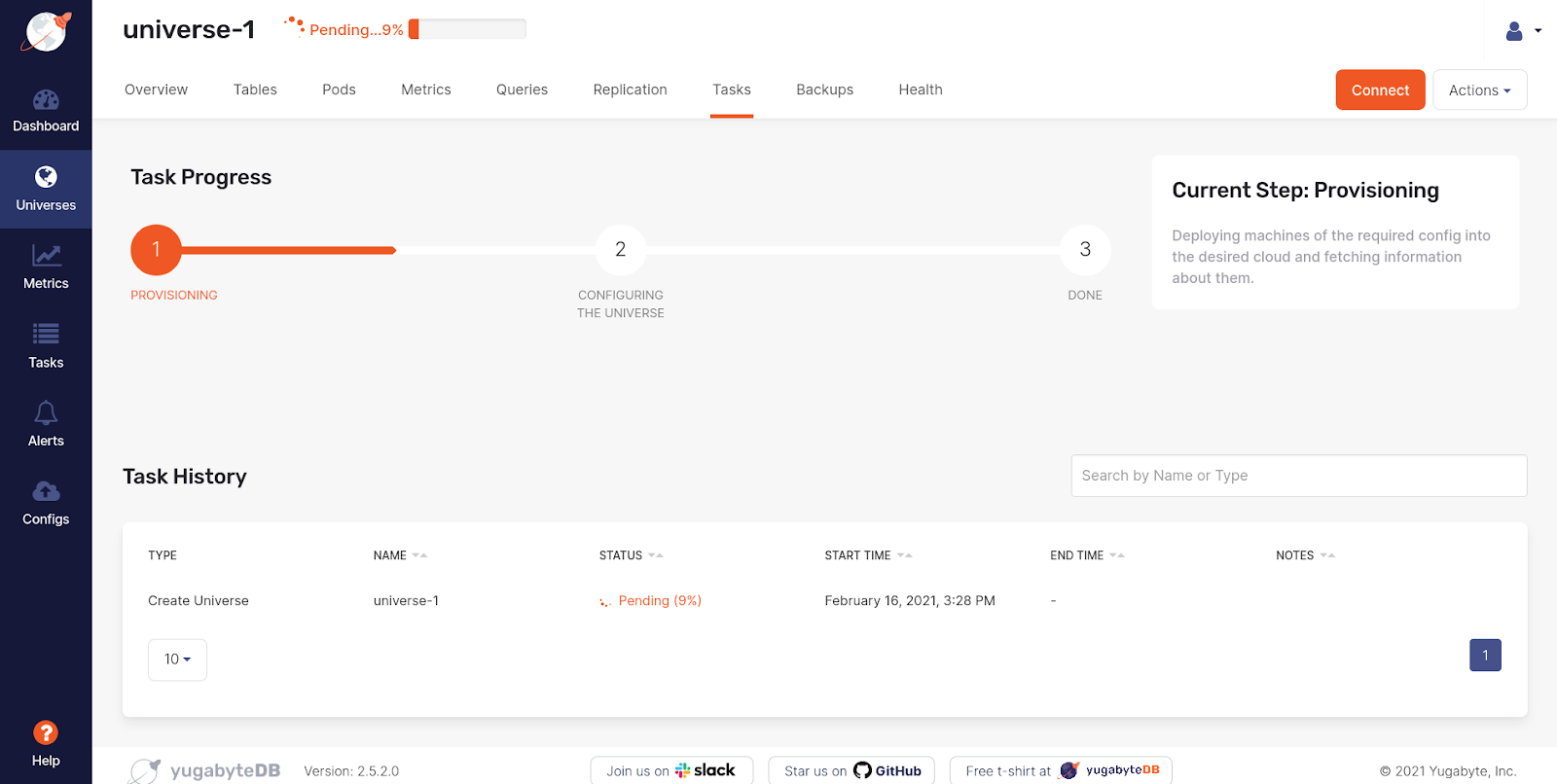
If you click universe-1 and then navigate to **Tasks**, you should see a page similar to the one shown in the following illustration:
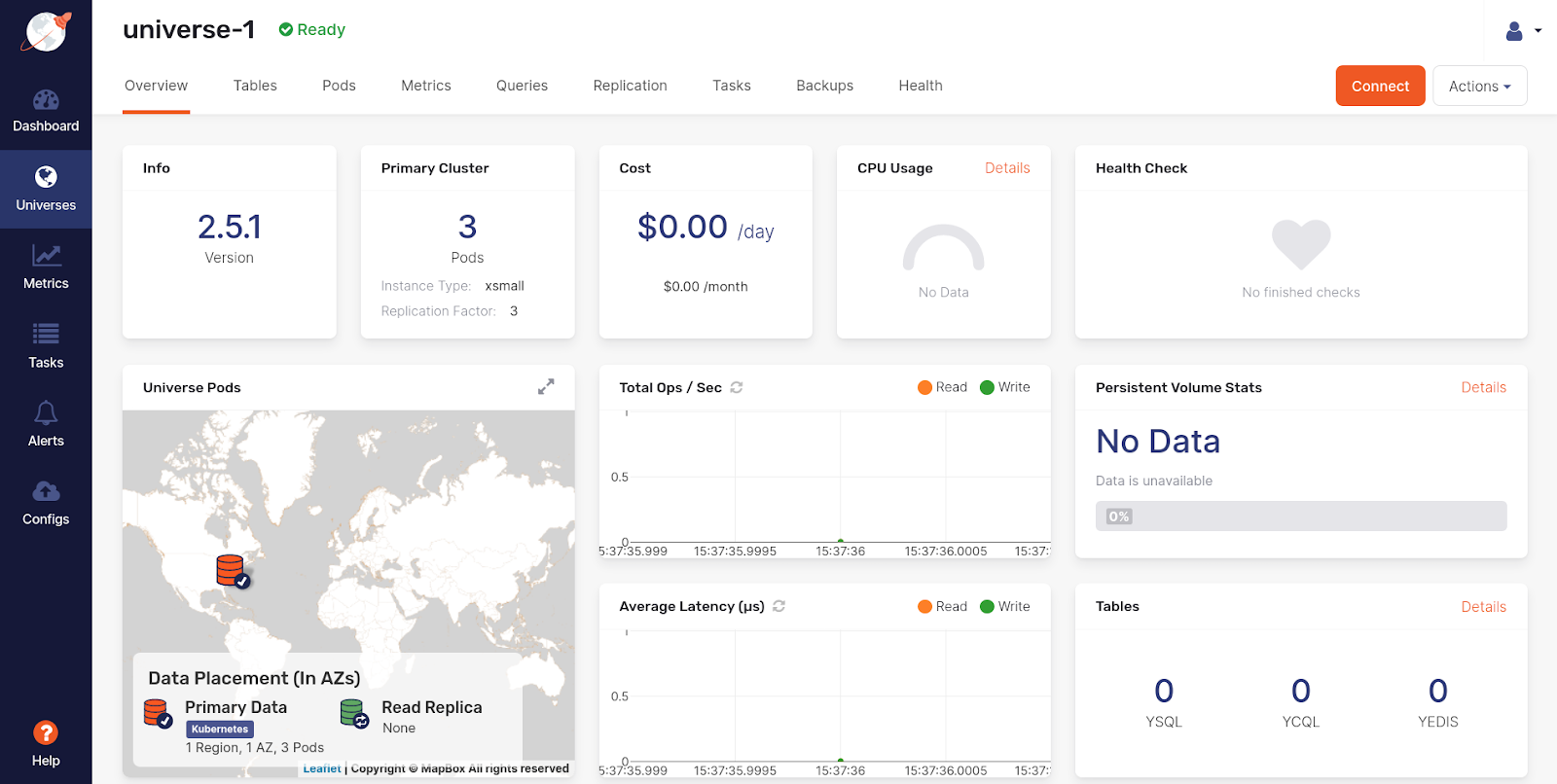
Upon successful creation of the universe, the **Overview** tab of universe-1 should look similar to the following:
## Troubleshoot the universe creation
If the universe creation remains in Pending state for more than 2-3 minutes, open the OCP web console, navigate to **Workloads > Pods** and check if any of the pods are in pending state, as shown in the following illustration:
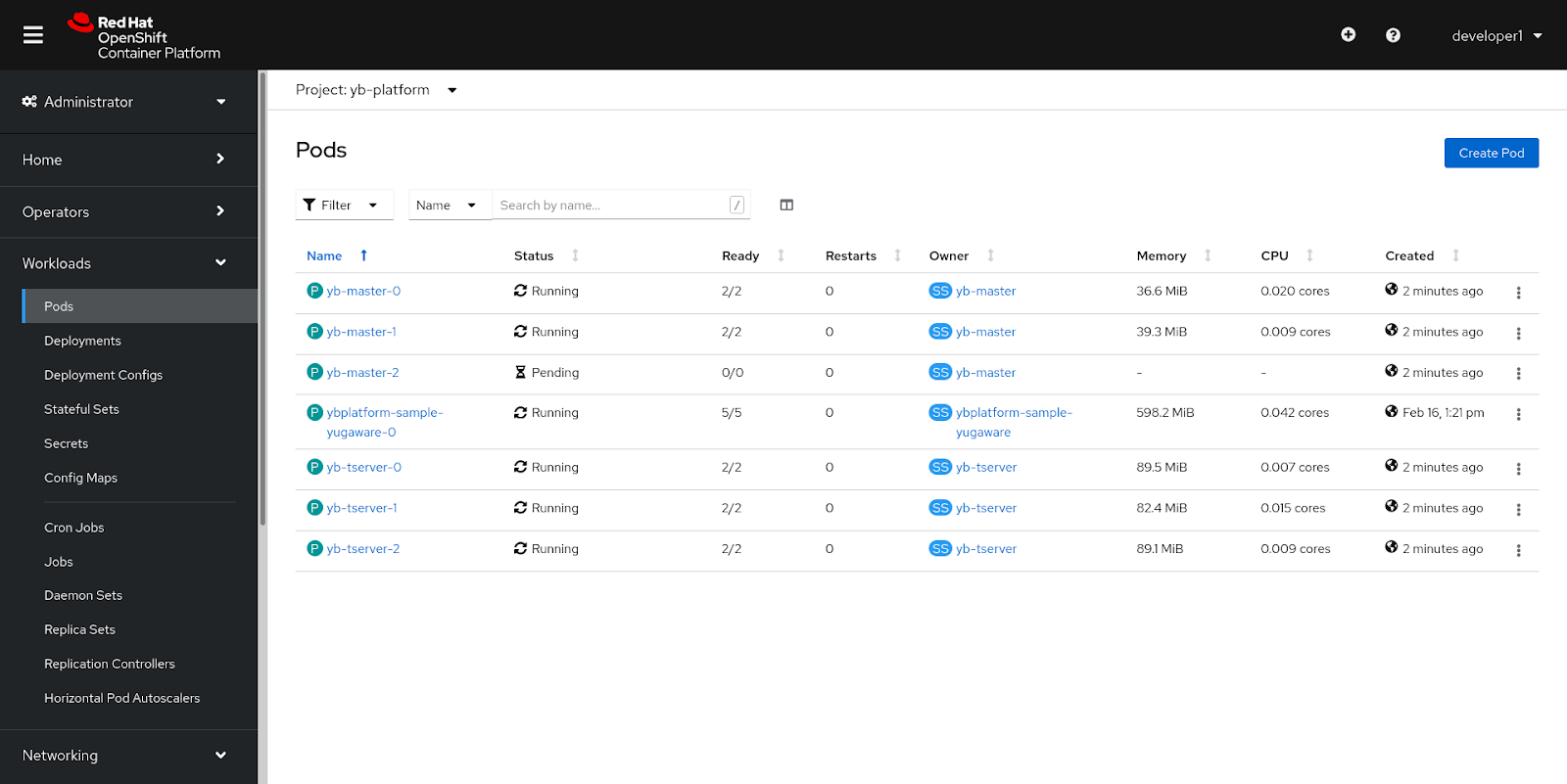
Alternatively, you can execute the following command to check status of the pods:
```shell
export YBA_NAMESPACE="yb-platform"
oc get pods -n ${YBA_NAMESPACE} -l chart=yugabyte
```
Expect an output similar to the following:
```output
# output
NAME READY STATUS RESTARTS AGE
yb-master-0 2/2 Running 0 5m58s
yb-master-1 2/2 Running 0 5m58s
yb-master-2 0/2 Pending 0 5m58s
yb-tserver-0 2/2 Running 0 5m58s
yb-tserver-1 2/2 Running 0 5m58s
yb-tserver-2 2/2 Running 0 5m58s
```
If any of the pods are in pending state, perform the following:
- Log in with an admin account and navigate to **Compute > Machine Sets**.
- Open the Machine Set corresponding to your zone label (us-east4-a).
- Click **Desired Count** and increase the count by 1 or 2, as shown in the following illustration.
- Click **Save**.
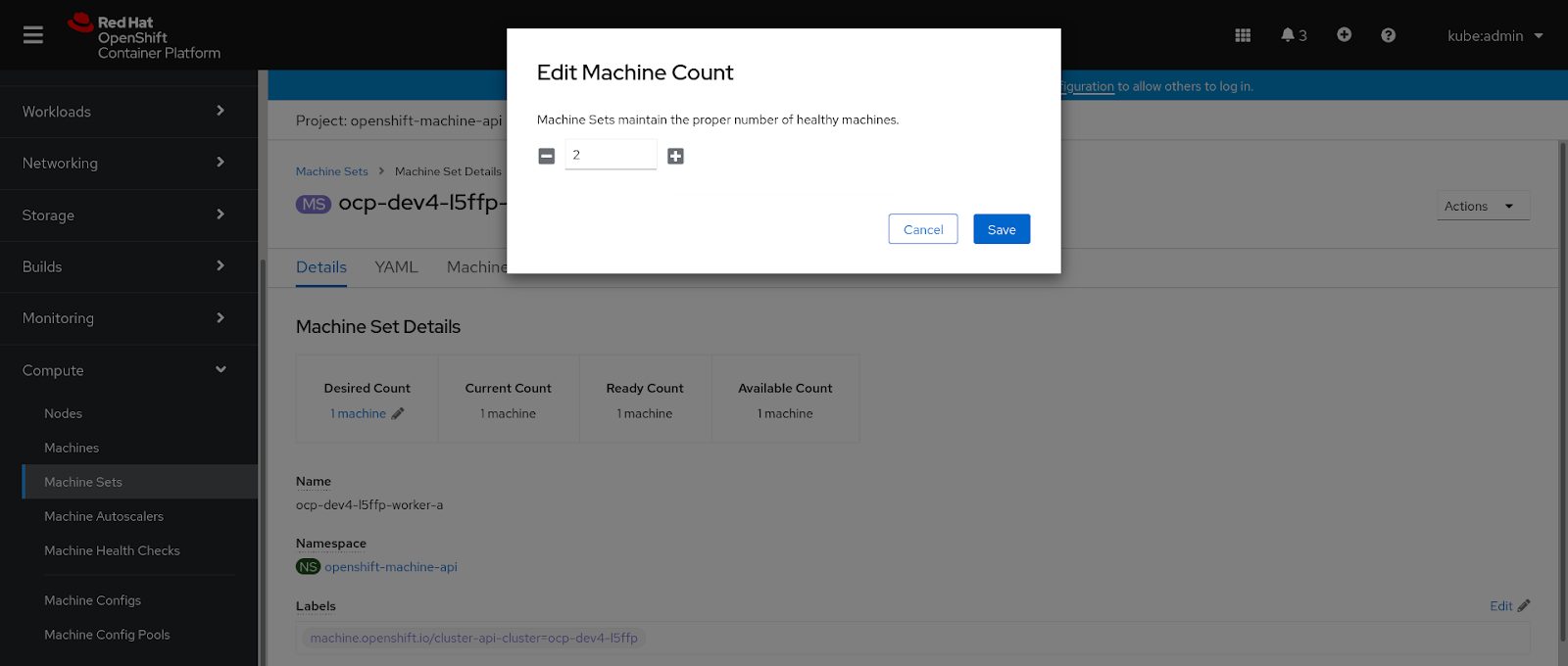
Alternatively, you can scale the Machine Sets by executing the following command as admin user:
```shell
oc scale machineset ocp-dev4-l5ffp-worker-a --replicas=2 -n openshift-machine-api
```
Expect the following output:
```output
# output
machineset.machine.openshift.io/ocp-dev4-l5ffp-worker-a scaled
```
As soon as the new machine is added, the pending pods become ready.