YugabyteDB Aeon supports peering virtual private cloud (VPC) networks on AWS and GCP.
Using YugabyteDB Aeon, you can create a VPC on GCP, deploy clusters in the VPC, and peer the VPC with application VPCs hosted on GCP.
To peer VPCs in GCP, you need to complete the following tasks:
| Task | Notes |
| :--- | :--- |
| **[Create the VPC](#create-a-vpc)** | Reserves a range of private IP addresses for the network.
The status of the VPC is _Active_ when done. |
| **[Create a peering connection](#create-a-peering-connection)** | Connects your VPC and the application VPC on the cloud provider network.
The status of the peering connection is _Pending_ when done. |
| **[Complete the peering in GCP](#complete-the-peering-in-gcp)** | Confirms the connection between your VPC and the application VPC.
The status of the peering connection is _Active_ when done. |
| **[Deploy a cluster in the VPC](#deploy-a-cluster-in-the-vpc)** | This can be done at any time - you don't need to wait until the VPC is peered. |
| **[Add the application VPC to the IP allow list](#add-the-application-vpc-to-the-cluster-ip-allow-list)** | Allows the peered application VPC to connect to the cluster.
Add at least one of the CIDR blocks associated with the peered application VPC to the [IP allow list](../../../cloud-secure-clusters/add-connections/) for your cluster. |
With the exception of completing the peering in GCP, these tasks are performed in YugabyteDB Aeon.
For information on VPC network peering in GCP, refer to [VPC Network Peering overview](https://cloud.google.com/vpc/docs/vpc-peering) in the Google VPC documentation.
## Create a VPC
To avoid cross-region data transfer costs, deploy your VPC in the same region as the application VPC you are peering with.
{{< tip title="What you need" >}}
The CIDR range for the application VPC with which you want to peer, as _the addresses can't overlap_.
**Where to find it**
Navigate to the GCP [VPC networks](https://console.cloud.google.com/networking/networks) page.
{{< /tip >}}
To create a VPC, do the following:
1. On the **Networking** page, select **VPC Network**, then **VPCs**.
1. Click **Create VPC** to display the **Create VPC** sheet.
1. Enter a name for the VPC.
1. Choose the provider (GCP).
1. Choose one of the following options:
- **Automated** - VPCs are created globally and GCP assigns network blocks to each region supported by YugabyteDB Aeon. (Not recommended for production, refer to [Considerations for auto mode VPC networks](https://cloud.google.com/vpc/docs/vpc#auto-mode-considerations) in the GCP documentation.)
- **Custom** - Select a region. Click **Add Region** to add additional regions. If the VPC is to be used for a multi-region cluster, add a region for each of the regions in the cluster.
1. [Specify the CIDR address](../cloud-vpc-intro/#set-the-cidr-and-size-your-vpc). CIDR addresses in different regions can't overlap.
- For Automated, use network sizes of /16, /17, or /18.
- For Custom, use network sizes of /24, /25, or /26.
Ensure the address _does not overlap_ with that of the application VPC.
1. Click **Save**.
YugabyteDB Aeon adds the VPC to the [VPCs list](../cloud-add-vpc/) with a status of _Creating_. If successful, after a minute or two, the status will change to _Active_.
The VPC's network name and project ID are automatically assigned. You'll need these details when configuring the peering in GCP.
## Create a peering connection
After creating a VPC in YugabyteDB Aeon that uses GCP, you can peer it with a GCP application VPC.
{{< tip title="What you need" >}}
The following details for the GCP application VPC you are peering with:
- GCP project ID
- VPC name
- VPC CIDR address
**Where to find it**
Navigate to your GCP [VPC networks](https://console.cloud.google.com/networking/networks) page.
{{< /tip >}}
To create a peering connection, do the following:
1. On the **Networking** page, select **VPC Network**, then **Peering Connections**.
1. Click **Add Peering Connection** to display the **Create Peering** sheet.
1. Enter a name for the peering connection.
1. Choose **GCP**.
1. Choose the YugabyteDB Aeon VPC. Only VPCs that use GCP are listed.
1. Enter the GCP Project ID, application VPC network name, and, optionally, VPC CIDR address.
1. Click **Initiate Peering**.
The peering connection is created with a status of _Pending_.
## Complete the peering in GCP
To complete a _Pending_ GCP peering connection, you need to sign in to GCP and create a peering connection.
{{< tip title="What you need" >}}
The **Project ID** and **VPC network name** of the YugabyteDB Aeon VPC you are peering with.
**Where to find it**
The **VPC Details** sheet on the [VPCs page](../cloud-add-vpc/) or the **Peering Details** sheet on the [Peering Connections page](../cloud-add-peering/).
{{< /tip >}}
In the Google Cloud Console, do the following:
1. Under **VPC network**, select [VPC network peering](https://console.cloud.google.com/networking/peering) and click **Create Peering Connection**.
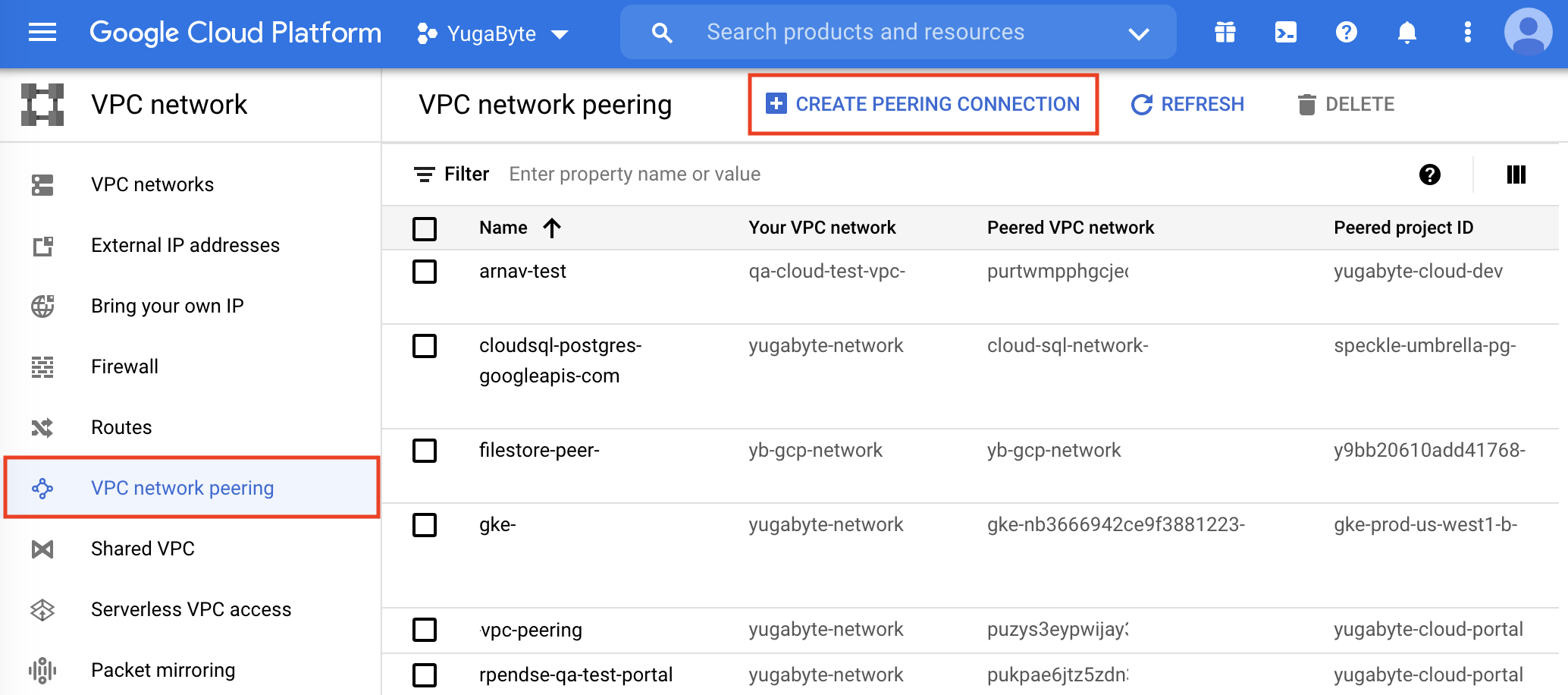
1. Click **Continue** to display the **Create peering connection** details.
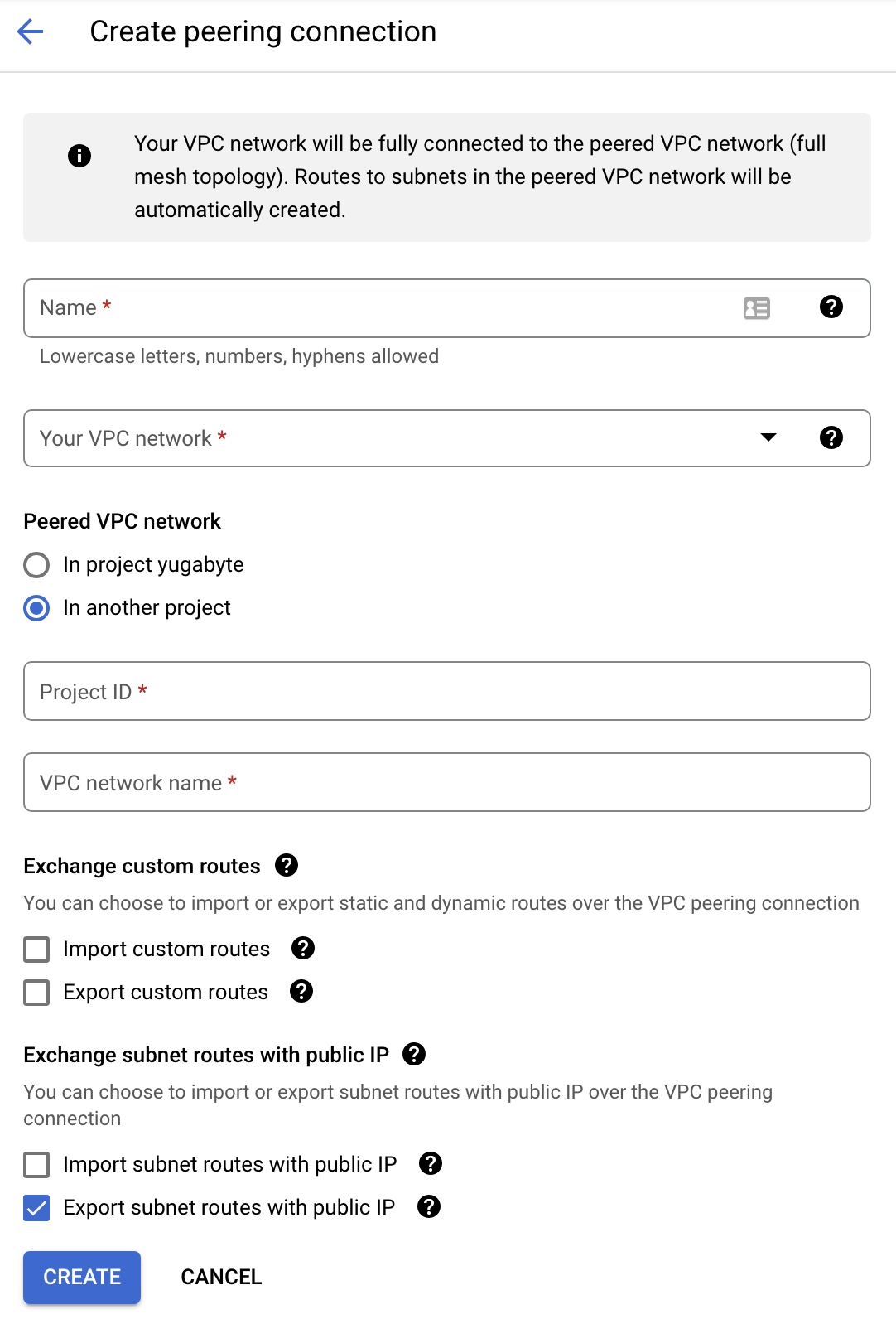
1. Enter a name for the GCP peering connection.
1. Select your VPC network name.
1. Select **In another project** and enter the **Project ID** and **VPC network name** of the YugabyteDB Aeon VPC you are peering with.
1. Click **Create**.
When finished, the status of the peering connection in YugabyteDB Aeon changes to _Active_ if the connection is successful.
## Deploy a cluster in the VPC
You can deploy a cluster in the VPC any time after the VPC is created.
To deploy a cluster in a VPC:
1. On the **Clusters** page, click **Add Cluster**.
1. Choose **Dedicated**.
1. Enter a name for the cluster, choose **GCP**, and click **Next**.
1. For a **Single-Region Deployment**, choose the region where the VPC is deployed, and under **Configure VPC**, choose **Use VPC peering**, and select your VPC.
For a **Multi-Region Deployment**, select the regions where the cluster is to be deployed, then select the VPC. The same VPC is used for all regions.
For more information on creating clusters, refer to [Create a cluster](../../create-clusters/).
## Add the application VPC to the cluster IP allow list
To enable the peered application VPC to connect to the cluster, you need to add the peered VPC to the cluster IP allow list.
To add the application VPC to the cluster IP allow list:
1. On the **Clusters** page, select the cluster you are peering, click **Actions**, and choose **Edit IP Allow List** to display the **Add IP Allow List** sheet.
1. Click **Add Peered VPC Networks**.
1. Click **Save** when done.
For more information on IP allow lists, refer to [IP allow lists](../../../cloud-secure-clusters/add-connections/).