The quickest way to get started with YugabyteDB is to create a free Sandbox cluster in YugabyteDB Aeon:
1. [Sign up](https://cloud.yugabyte.com/signup?utm_medium=direct&utm_source=docs&utm_campaign=YBM_signup).
1. [Log in](https://cloud.yugabyte.com/login).
1. Click **Create Cluster**.
The first time you log in, YugabyteDB Aeon provides a welcome experience with a 15 minute guided tutorial. Complete the steps in the **Get Started** tutorial to do the following:
- Connect to the database
- Load sample data and run queries
- Explore a sample application
{{< sections/2-boxes >}}
{{< sections/bottom-image-box
title="Docs"
description="Learn how to deploy and manage clusters in YugabyteDB Aeon."
buttonText="YugabyteDB Aeon documentation"
buttonUrl="/stable/yugabyte-cloud/"
>}}
{{< sections/bottom-image-box
title="FAQ"
description="Get answers to questions about YugabyteDB Aeon."
buttonText="YugabyteDB Aeon FAQ"
buttonUrl="/stable/faq/yugabytedb-managed-faq/"
>}}
{{< /sections/2-boxes >}}
If you aren't using the **Get Started** tutorial, use the following instructions to create a cluster, connect to your database, explore distributed SQL, and build an application.
## Create your Sandbox cluster
The Sandbox cluster provides a fully functioning single node YugabyteDB cluster deployed to the region of your choice. The cluster is free forever and includes enough resources to explore the core features available for developing applications with YugabyteDB. No credit card information is required.
>**Sandbox cluster**
>
>YugabyteDB is a distributed database optimized for deployment across a cluster of servers. The Sandbox cluster has a single node and limited resources, suitable for running tutorials, [Yugabyte University](https://university.yugabyte.com), and [building sample applications](/stable/develop/tutorials/build-apps/). See [Differences between Sandbox and Dedicated clusters](/stable/faq/yugabytedb-managed-faq/#what-are-the-differences-between-sandbox-and-dedicated-clusters) for more information.
>
>To evaluate YugabyteDB Aeon for production use or conduct a proof-of-concept (POC), contact [Yugabyte Support](https://support.yugabyte.com/hc/en-us/requests/new?ticket_form_id=360003113431) for trial credits.
To create your Sandbox cluster:
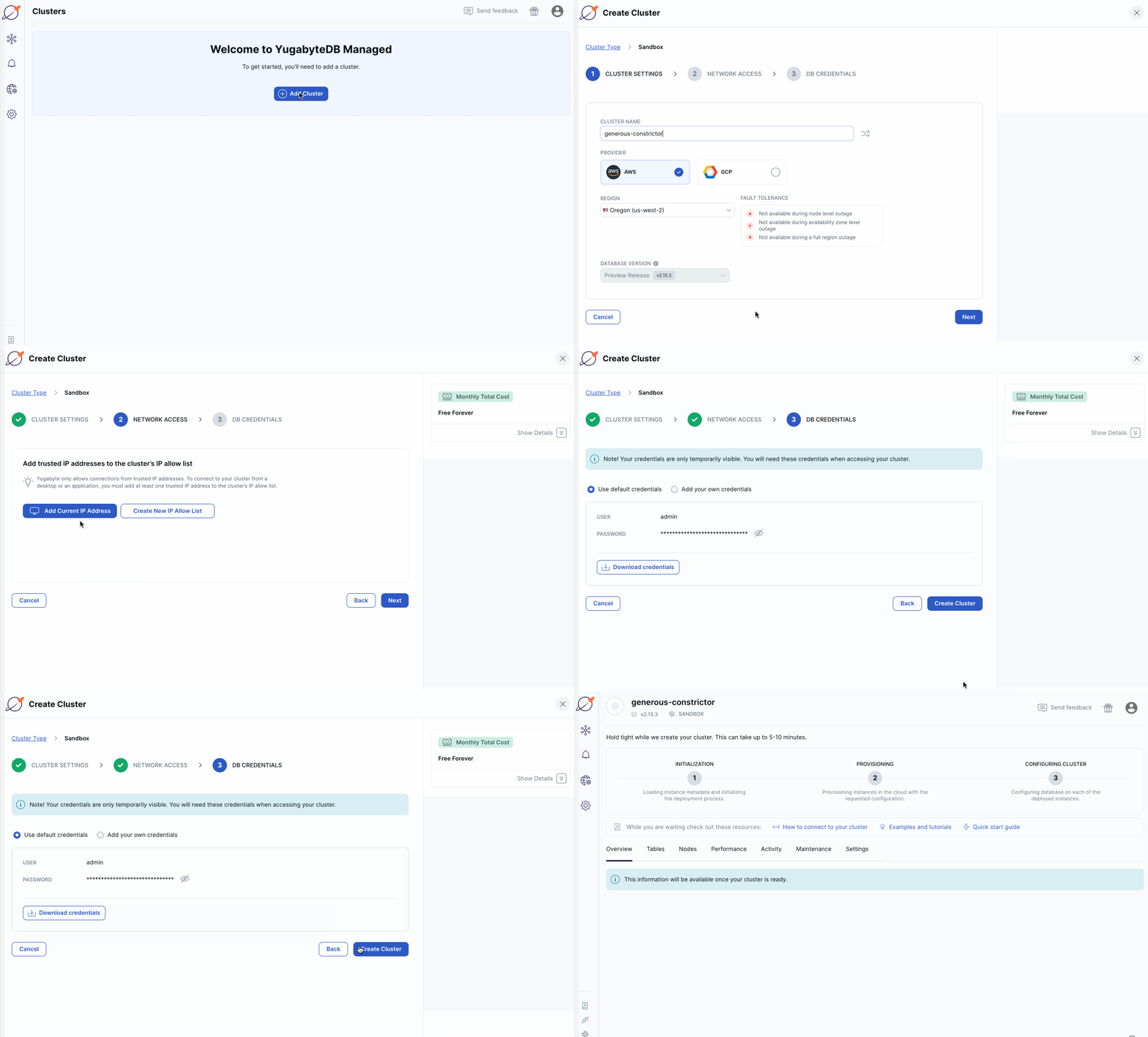
1. Click **Create Cluster** on the welcome screen, or click **Add Cluster** on the **Clusters** page to open the **Create Cluster** wizard.
1. Select Sandbox and click **Choose**.
1. Enter a name for the cluster, choose the cloud provider (AWS or GCP), and choose the region in which to deploy the cluster, then click **Next**.
1. Click **Add Current IP Address**. The IP address of your machine is added to the IP allow list. This allows you to connect to your sandbox cluster from applications and your desktop after it is created.
1. Click **Next**.
1. Click **Download credentials**. The default credentials are for a database user named "admin". You'll use these credentials when connecting to your YugabyteDB database.
1. Click **Create Cluster**.
YugabyteDB Aeon bootstraps and provisions the cluster, and configures YugabyteDB. The process takes around 5 minutes. While you wait, you can optionally fill out a survey to customize your getting started experience.
When the cluster is ready, the cluster **Overview** is displayed. You now have a fully configured YugabyteDB cluster provisioned in YugabyteDB Aeon.
## Connect to the cluster
Use Cloud Shell to connect to your YugabyteDB Aeon cluster from your browser, and interact with it using distributed SQL.
>The shell has a one hour connection limit. If your session is idle for more than 5 minutes, it may disconnect. If your session expires, close your browser tab and connect again.
To connect to your cluster, do the following:
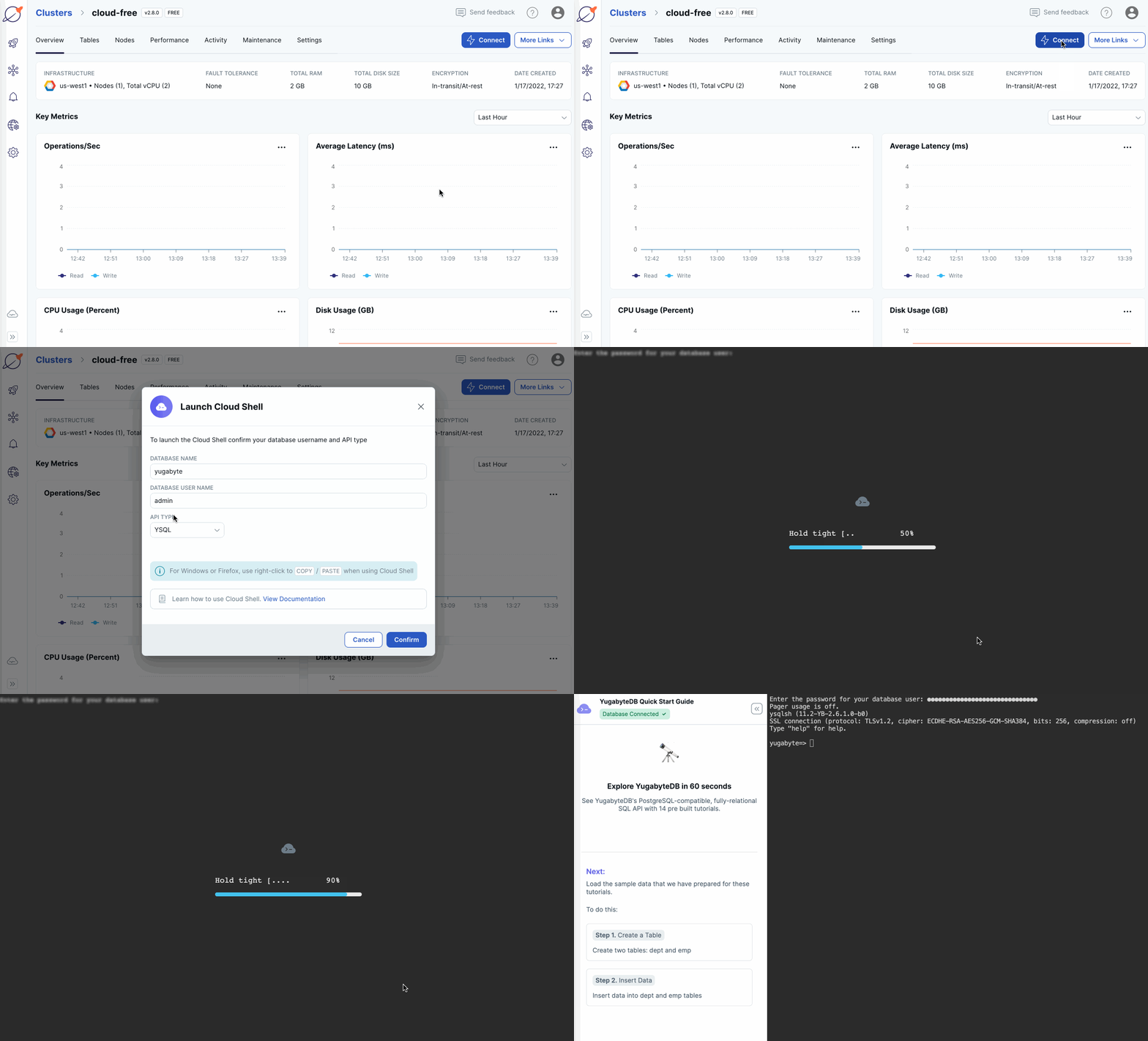
1. On the **Clusters** page, ensure your cluster is selected.
1. Click **Connect** to display the **Connect to Cluster** dialog.
1. Under **Cloud Shell**, click **Launch Cloud Shell**.
1. Enter the database name (`yugabyte`), the user name (`admin`), select the YSQL API type, and click **Confirm**.
Cloud Shell opens in a separate browser window. Cloud Shell can take up to 30 seconds to be ready.
```output
Enter your DB password:
```
1. Enter the password for the admin user credentials that you saved when you created the cluster.
The shell prompt appears and is ready to use.
```output
ysqlsh (15.2-YB-{{}}-b0)
SSL connection (protocol: TLSv1.2, cipher: ECDHE-RSA-AES256-GCM-SHA384, bits: 256, compression: off)
Type "help" for help.
yugabyte=>
```
The command line interface (CLI) being used is called [ysqlsh](/stable/api/ysqlsh/). ysqlsh is the CLI for interacting with YugabyteDB using the PostgreSQL-compatible [YSQL API](/stable/api/ysql/). Cloud Shell also supports [ycqlsh](/stable/api/ycqlsh/), a CLI for the [YCQL API](/stable/api/ycql/).
For information on other ways to connect to your cluster, refer to [Connect to clusters](/stable/yugabyte-cloud/cloud-connect).
## Explore distributed SQL
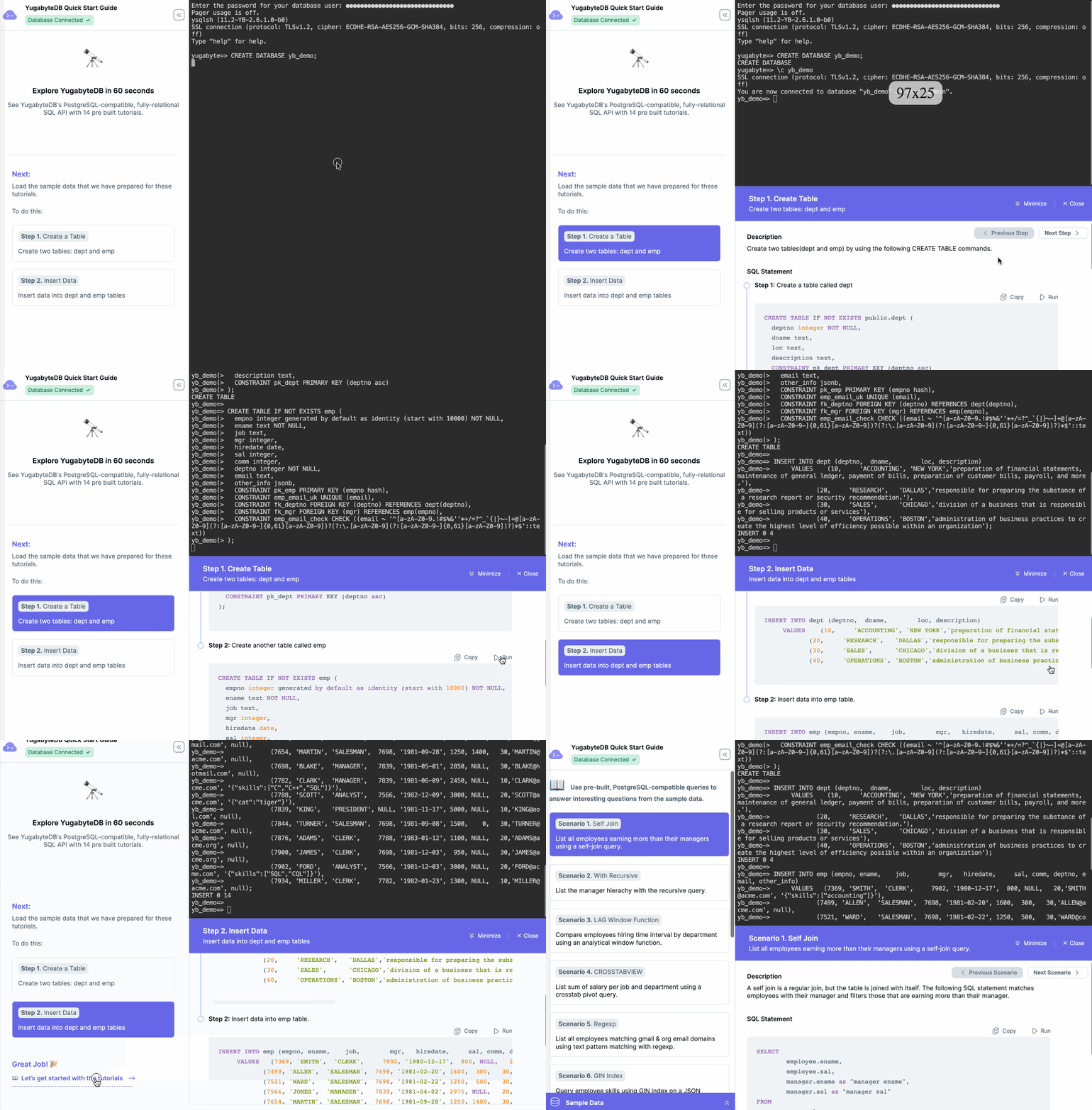
When you connect to your cluster using Cloud Shell with the YSQL API (the default), the shell window incorporates a **Quick Start Guide**, with a series of pre-built queries for you to run. Follow the prompts to explore YugabyteDB in 5 minutes.
## Build an application
Applications connect to and interact with YugabyteDB using API client libraries (also known as client drivers). This section shows how to connect applications to YugabyteDB Aeon clusters using your favorite programming language.
Before you begin, you need the following:
- a cluster deployed in YugabyteDB Aeon.
- the cluster CA certificate; YugabyteDB Aeon uses TLS to secure connections to the database.
- your computer added to the cluster IP allow list.
Refer to [Before you begin](/stable/develop/tutorials/build-apps/cloud-add-ip/).
### Choose your language
Choose the language you want to use to build your application.
{{< readfile "quick-start-buildapps-include.md" >}}
 Use a cloud cluster
 Use a local cluster