The following tutorial describes how to use Python's Spark API `pyspark` with YugabyteDB, and perform YSQL queries.
## Prerequisites
This tutorial assumes that you have:
- YugabyteDB running. If you are new to YugabyteDB, follow the steps in [Quick start](/stable/quick-start/macos/).
- Java Development Kit (JDK) 1.8. JDK installers for Linux and macOS can be downloaded from [OpenJDK](http://jdk.java.net/), [AdoptOpenJDK](https://adoptopenjdk.net/), or [Azul Systems](https://www.azul.com/downloads/zulu-community/). Homebrew users on macOS can install using `brew install AdoptOpenJDK/openjdk/adoptopenjdk8`.
- [Apache Spark 3.5.4](https://spark.apache.org/downloads.html).
## Start Python Spark shell with YugabyteDB driver
From your spark installation directory, use the following command to start `pyspark` shell, and pass the YugabyteDB driver package with the `--packages` parameter. The command fetches the YugabyteDB driver from local cache (if present), or installs the driver from [maven central](https://search.maven.org/).
```sh
./bin/pyspark --packages com.yugabyte:jdbc-yugabytedb:{{< version-driver-java >}}
```
The Spark session should be available as follows:
```output
Welcome to
____ __
/ __/__ ___ _____/ /__
_\ \/ _ \/ _ `/ __/ '_/
/__ / .__/\_,_/_/ /_/\_\ version 3.5.4
/_/
Using Python version 3.8.9 (default, Jul 19 2021 09:37:30)
Spark context Web UI available at http://192.168.0.141:4040
Spark context available as 'sc' (master = local[*], app id = local-1658425088632).
SparkSession available as 'spark'.
>>>
```
## Set up the database
Create the database and table you will read and write to as follows:
1. From your YugabyteDB installation directory, use [ysqlsh](../../../api/ysqlsh/) shell to read and write directly to the database as follows:
```sh
./bin/ysqlsh
```
1. Create a database `ysql_pyspark` and connect to it using the following:
```sql
yugabyte=# CREATE DATABASE ysql_pyspark;
yugabyte=# \c ysql_pyspark;
```
```output
You are now connected to database "ysql_pyspark" as user "yugabyte".
ysql_pyspark=#
```
1. Create a table in the `ysql_pyspark` database to read and write data through the JDBC connector, and populate it with data as follows:
```sql
ysql_pyspark=# create table test as select generate_series(1,100000) AS id, random(), ceil(random() * 20);
```
## Set up connectivity with YugabyteDB
From your Spark prompt, set up the connection URL and properties to read and write data through the JDBC connector to YugabyteDB.
```spark
>>> jdbcUrl = "jdbc:yugabytedb://localhost:5433/ysql_pyspark"
>>> connectionProperties = {
"user" : "yugabyte",
"password" : "yugabyte",
"driver" : "com.yugabyte.Driver"
}
```
## Store and retrieve data
To read and write data using the JDBC connector, create a [DataFrame](https://archive.apache.org/dist/spark/docs/1.5.1/api/java/org/apache/spark/sql/DataFrame.html) in one of the following ways:
### Use DataFrame APIs
Create a DataFrame for the `test` table to read data via the JDBC connector using the following:
```spark
>>> test_Df = spark.read.jdbc(url=jdbcUrl, table="test", properties=connectionProperties)
```
### Use SQL queries
Alternatively, you can use SQL queries to create a DataFrame which pushes down the queries to YugabyteDB through the JDBC connector to fetch the rows, and create a DataFrame for that result.
```spark
>>> test_Df = spark.read.jdbc(url=jdbcUrl, table="(select * from test) test_alias",properties=connectionProperties)
```
Output the schema of the DataFrame created as follows:
```spark
>>> test_Df.printSchema()
```
```output
root
|-- id: integer (nullable = true)
|-- random: double (nullable = true)
|-- ceil: double (nullable = true)
```
Read some data from the table using the DataFrame APIs:
```scala
>>> test_Df.select("id","ceil").groupBy("ceil").sum("id").limit(10).show()
```
```output
+--------+---------+
|ceil | sum(id)|
+--------+---------+
| 8.0|248688663|
| 7.0|254438906|
| 18.0|253717793|
| 1.0|253651826|
| 4.0|251144069|
| 11.0|252091080|
| 14.0|244487874|
| 19.0|256220339|
| 3.0|247630466|
| 2.0|249126085|
+--------+---------+
```
### Use `spark.sql()` API
Another alternative is to use the `spark.sql()` API to directly execute SQL queries using the following code:
```spark
>>> test_Df.createOrReplaceTempView("test")
>>> res_df = spark.sql("select ceil, sum(id) from test group by ceil limit 10")
>>> res_df.show()
```
The output will be similar to [SQL queries](#using-sql-queries).
The following Spark query renames the column of the table `test` from `ceil` to `round_off` in the DataFrame, then creates a new table with the schema of the changed DataFrame, inserts all its data in the new table, and names it as `test_copy` using the JDBC connector.
```spark
>>> spark.table("test").withColumnRenamed("ceil", "round_off").write.jdbc(url=jdbcUrl, table="test_copy", properties=connectionProperties)
```
Verify that the new table `test_copy` is created with the changed schema, and all the data from `test` is copied to it using the following commands from your ysqlsh terminal:
```sql
ysql_pyspark=# \dt
```
```output
List of relations
Schema | Name | Type | Owner
--------+-----------+-------+----------
public | test_copy | table | yugabyte
public | test | table | yugabyte
(2 rows)
```
```sql
ysql_pyspark=# \d test_copy
```
```output
Table "public.test_copy"
Column | Type | Collation | Nullable | Default
-----------+------------------+-----------+----------+---------
id | integer | | |
random | double precision | | |
round_off | double precision | | |
```
```sql
ysql_pyspark=# SELECT COUNT(*) FROM test_copy;
```
```output
count
--------
100000
(1 row)
```
Use the `append` [SaveMode](https://spark.apache.org/docs/latest/sql-data-sources-load-save-functions.html#save-modes), to append data from `test_copy` to the `test` table as follows:
```spark
>>> test_copy_Df = spark.read.jdbc(url=jdbcUrl, table="(select * from test_copy) test_copy_alias", properties=connectionProperties)
>>> test_copy_Df.createOrReplaceTempView("test_copy")
>>> spark.table("test_copy").write.mode("append").jdbc(url=jdbcUrl, table="test", properties=connectionProperties)
```
Verify the changes using ysqlsh:
```sql
ysql_pyspark=# SELECT COUNT(*) FROM test;
```
```output
count
--------
200000
(1 row)
```
## Parallelism
To maintain parallelism while fetching the table content, create a DataFrame for the table `test` with some specific options as follows:
```spark
>>> new_test_df = spark.read.jdbc(url=jdbcUrl, table="test", properties=connectionProperties,numPartitions=5, column="ceil", lowerBound=0, upperBound=20)
>>> new_test_df.createOrReplaceTempView("test")
>>> spark.sql("select sum(ceil) from test where id > 50000").show()
```
```output
+---------+
|sum(ceil)|
+---------+
|1049414.0|
+---------+
```
The options used in the example help in breaking down the whole task into `numPartitions` parallel tasks on the basis of the `partitionColumn`, with the help of minimum and maximum value of the column; where,
- `numPartitions` - divides the whole task to `numPartitions` parallel tasks.
- `lowerBound` - minimum value of the `partitionColumn` in a table.
- `upperBound` - maximum value of the `partitionColumn` in a table.
- `partitionColumn` - the column on the basis of which a partition occurs.
Additionally, the following two options help in optimizing the SQL queries executing on this dataframe if those SQL queries consist of some filters or aggregate functions by pushing down those filters and aggregates to the YugabyteDB through the JDBC connector.
- `pushDownPredicate` - optimizes the query by pushing down the filters to YugabyteDB through the JDBC connector.
- `pushDownAggregate` - optimizes the query by pushing down the aggregated to YugabyteDB through the JDBC connector.
### Verify parallelism
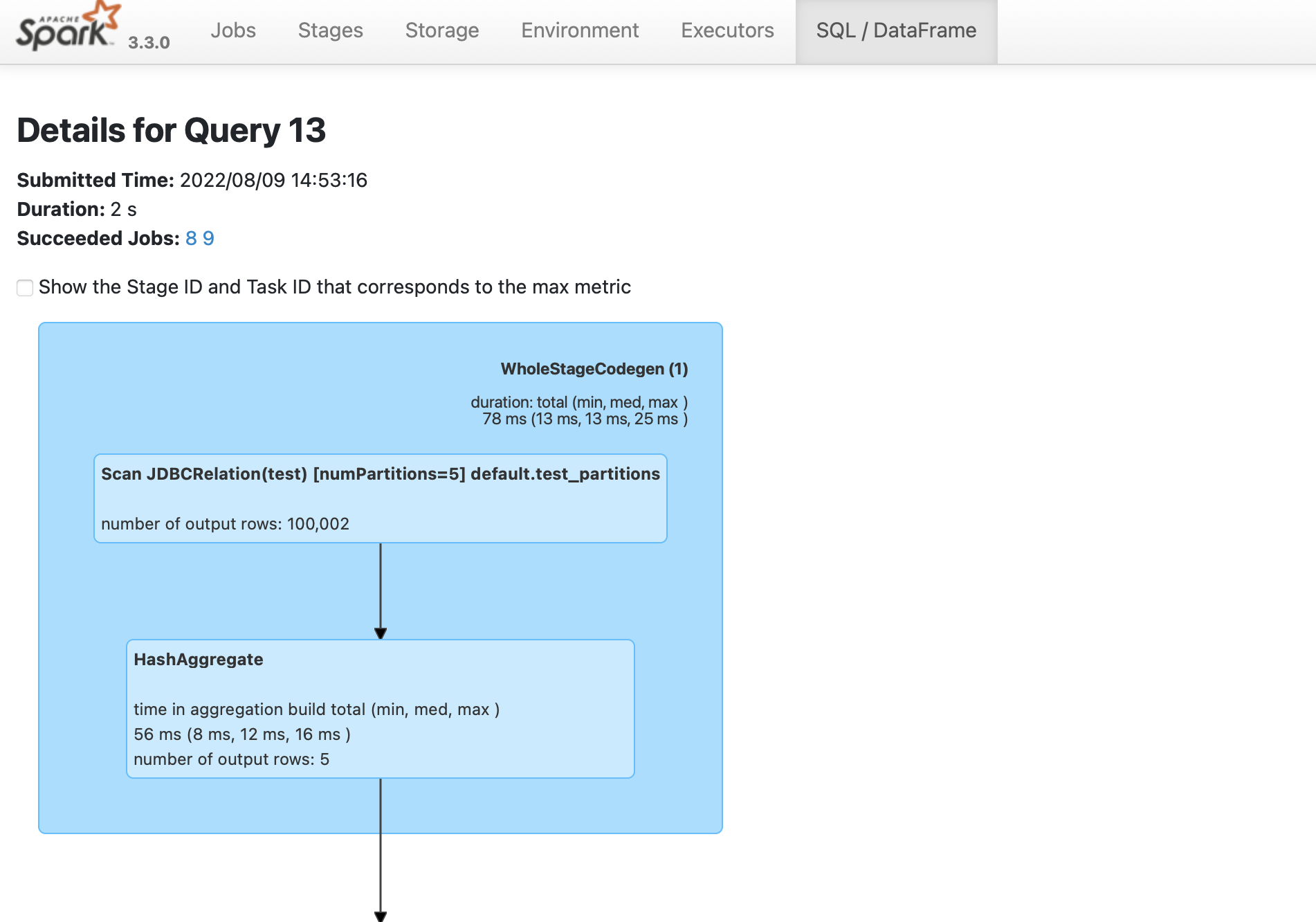
To verify that the Spark job is created, do the following:
1. Navigate to the Spark UI using . If your port 4040 is in use, then change the port to the one mentioned when you started the [`pyspark`](#start-python-spark-shell-with-yugabytedb-driver) shell.
1. From the **SQL/DataFrame** tab, click the last executed SQL statement to see if `numPartitions=5` is displayed as shown in the following illustration: