For protection in the event of the failure of an entire cloud region, you can deploy YugabyteDB across multiple regions with a synchronously replicated multi-region universe.
In a synchronized multi-region universe, a minimum of three nodes are [replicated](../../../architecture/docdb-replication/replication/) across three regions with a replication factor (RF) of 3. In the event of a region failure, the universe continues to serve data requests from the remaining regions. YugabyteDB automatically performs a failover to the nodes in the other two regions, and the tablets being failed over are evenly distributed across the two remaining regions.
This deployment provides the following advantages:
- Resilience - putting the universe nodes in different regions provides a higher degree of failure independence.
- Consistency - all writes are synchronously replicated. Transactions are globally consistent.
## Create a synchronized multi-region universe
This example simulates AWS regions on a local machine. To run it, first [destroy](../../../reference/configuration/yugabyted/#destroy-a-local-universe) any running local universes.
You can also use these steps to deploy universes in a public cloud, private data center, or in separate virtual machines. Simply replace the IP addresses in the commands with the corresponding IP addresses of your nodes/VMs.
Start a three-node universe with an RF of `3` and with each replica placed in different AWS regions (`us-west-2`, `us-east-1`, `ap-northeast-1`), as follows.
{{}}
The [configure](../../../reference/configuration/yugabyted/#configure) command determines the data placement constraint based on the `--cloud_location` of each node in the universe. If three or more regions are available in the universe, `configure` configures the universe to survive at least one region failure. Otherwise, it outputs a warning message. The command can be executed on any node where you already started YugabyteDB.
## Review the deployment
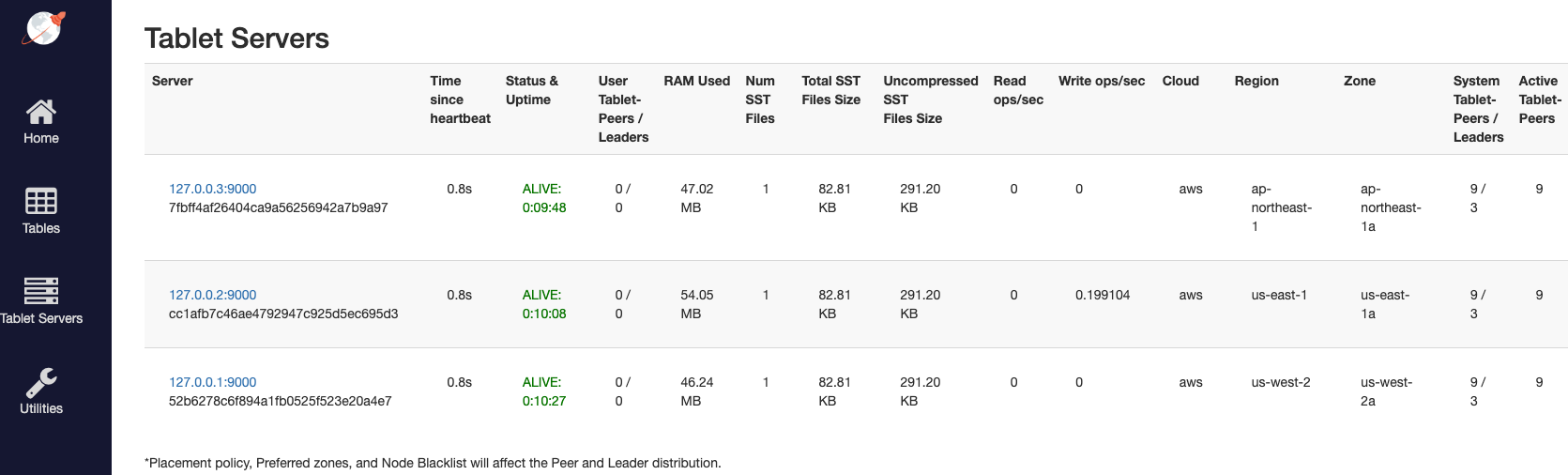
In this deployment, the YB-Masters are each placed in a separate region to allow them to survive the loss of a region. You can view the tablet servers on the [tablet servers page](http://localhost:7000/tablet-servers), as per the following illustration:
## Start a workload
Follow the [setup instructions](../../cluster-setup-local/#set-up-yb-workload-simulator) to install the YB Workload Simulator application.
### Configure the smart driver
The YugabyteDB JDBC Smart Driver performs uniform load balancing by default, meaning it uniformly distributes application connections across all the nodes in the universe. However, in a multi-region universe, it is more efficient to target regions closest to your application.
You can configure the smart driver with [topology load balancing](/stable/develop/drivers-orms/smart-drivers/#topology-aware-load-balancing) to limit connections to the closest region.
To turn on topology load balancing, start the application as usual, adding the following flag:
```sh
-Dspring.datasource.hikari.data-source-properties.topologyKeys=
```
*cloud.region.zone* represents the location of the zone where your application is hosted.
If you are running the application locally, set the value to the cloud location of the node to which you are connecting. For example, if you are connecting to 127.0.0.1, set the value to `aws.us-west-2.us-west-2a`, as follows:
```sh
java -jar \
-Dnode=127.0.0.1 \
-Dspring.datasource.hikari.data-source-properties.topologyKeys=aws.us-west-2.us-west-2a \
./yb-workload-sim-0.0.8.jar
```
After the connection has been established, [start a workload](../../#start-a-read-and-write-workload).
## View the universe activity
To verify that the application is running correctly, navigate to the application UI at to view the universe network diagram, as well as latency and throughput charts for the running workload.
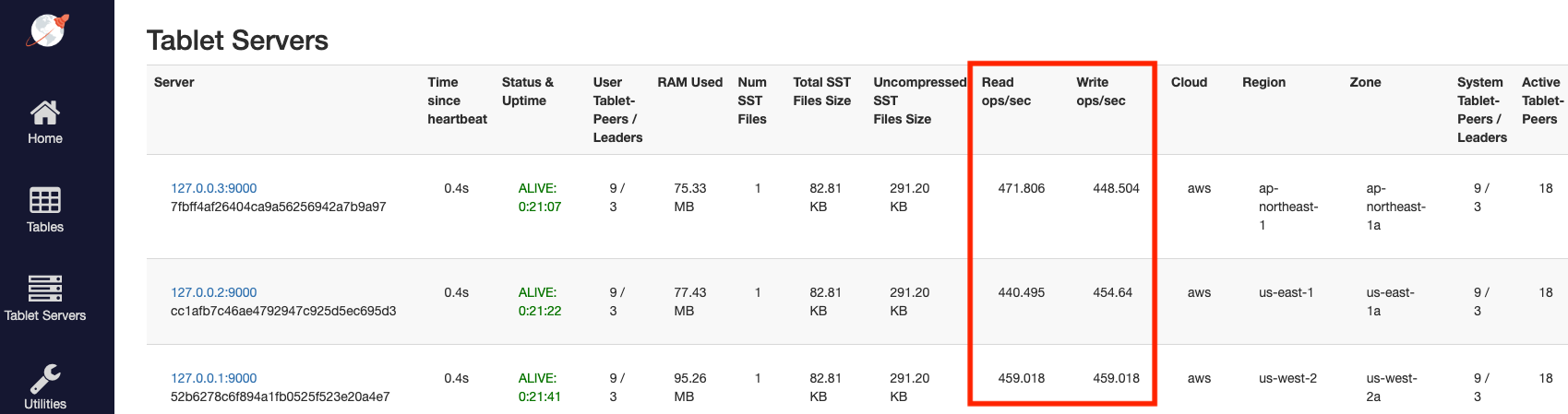
Expect to see some read and write load on the [tablet servers page](http://localhost:7000/tablet-servers), as per the following illustration:
## Tune latencies
Latency in a multi-region universe depends on the distance and network packet transfer times between the nodes of the universe as well as between the universe and the client. Because the [tablet leader](../../../architecture/key-concepts/#tablet-leader) replicates write operations across a majority of tablet peers before sending a response to the client, all writes involve cross-region communication between tablet peers.
For best performance and lower data transfer costs, you want to minimize transfers between providers and between provider regions. You do this by placing your universe as close to your applications as possible, as follows:
- Use the same cloud provider as your application.
- Place your universe in the same region as your application.
- Peer your universe with the Virtual Private Cloud (VPC) hosting your application.
### Follower reads
YugabyteDB offers tunable global reads that allow read requests to trade off some consistency for lower read latency. By default, read requests in a YugabyteDB universe are handled by the leader of the Raft group associated with the target tablet to ensure strong consistency. If you are willing to sacrifice some consistency in favor of lower latency, you can choose to read from a tablet follower that is closer to the client rather than from the leader. YugabyteDB also allows you to specify the maximum staleness of data when reading from tablet followers.
For more information, see [Follower reads examples](../../going-beyond-sql/follower-reads-ysql/).
### Preferred region
If application reads and writes are known to be originating primarily from a single region, you can designate a preferred region, which pins the tablet leaders to that single region. As a result, the preferred region handles all read and write requests from clients. Non-preferred regions are used only for hosting tablet follower replicas.
For multi-row or multi-table transactional operations, colocating the leaders in a single zone or region can help reduce the number of cross-region network hops involved in executing a transaction.
The following command sets the preferred zone to `aws.us-west-2.us-west-2a`:
```sh
./bin/yb-admin \
--master_addresses 127.0.0.1:7100,127.0.0.2:7100,127.0.0.3:7100 \
set_preferred_zones \
aws.us-west-2.us-west-2a
```
Expect to see the read and write load on the [tablet servers page](http://localhost:7000/tablet-servers) move to the preferred region, as per the following illustration:
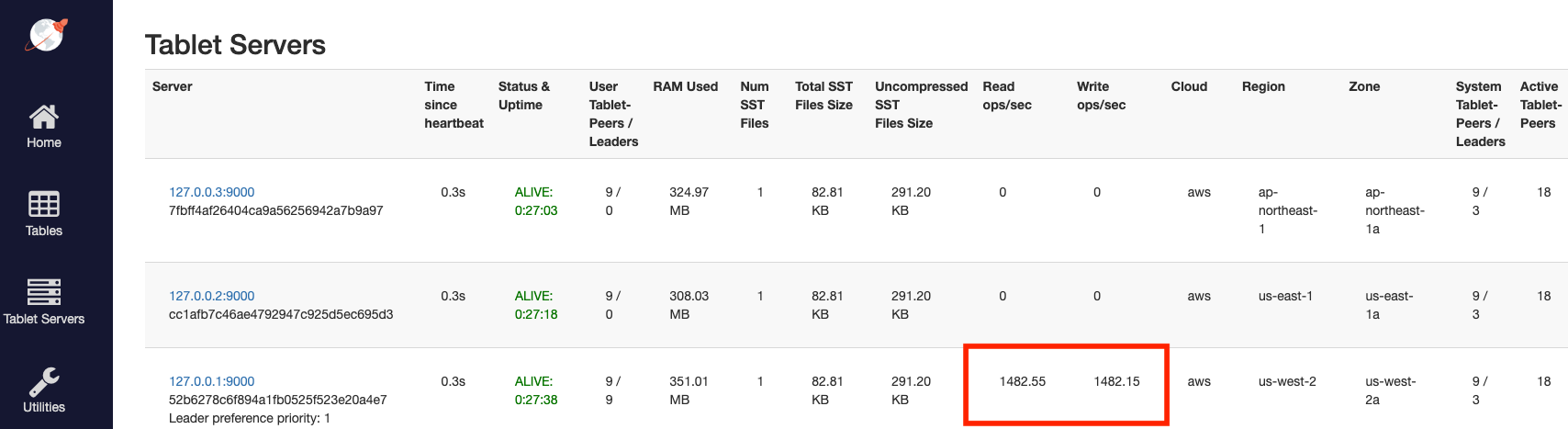
When complete, the load is handled exclusively by the preferred region.
{{% explore-cleanup-local %}}
 Local
Local
 YugabyteDB Aeon
 YugabyteDB Anywhere