## Prerequisites
- Download and install [Google Cloud SDK](https://cloud.google.com/sdk/downloads/). Note that if you install `gcloud` using a package manager (as opposed to downloading and installing it manually), some of the commands will not be supported.
- Install `kubectl`command line tool by running the following command:
```sh
gcloud components install kubectl
```
- Configure defaults for `gcloud` by setting the project ID as `yugabyte`. You can change this as needed.
```sh
gcloud config set project yugabyte
```
## Create a GKE cluster
Each cluster brings up three nodes each of the type `n1-standard-1` for the Kubernetes masters. You can directly create a cluster with the desired machine type using the `--machine-type` option. In the following example, you are going to create a node-pool with `n1-standard-8` type nodes for the YugabyteDB universe.
- Choose the zone in which you want to run the cluster. In this example, you are going to deploy the Kubernetes masters using the default machine type `n1-standard-1` in the zone `us-west1-a`, and add a node pool with the desired node type and node count in order to deploy the YugabyteDB universe. You can view the list of zones by running the following command:
```sh
gcloud compute zones list
```
```output
NAME REGION STATUS
...
us-west1-b us-west1 UP
us-west1-c us-west1 UP
us-west1-a us-west1 UP
...
```
- Create a private Kubernetes cluster on GKE in the desired zone by running the following.
```sh
gcloud container clusters create cluster_name --enable-private-nodes --zone us-west1-b
```
Note that you must set up Cloud NAT for a private Kubernetes cluster in Google Cloud to ensure that your cluster can access the internet while its nodes do not have public IP addresses. Refer to [Configuring Private Google Access and Cloud NAT in Google Cloud Platform (GCP)](https://kloudkraft.medium.com/configuring-private-google-access-and-cloud-nat-in-google-cloud-platform-gcp-3c4406b590b3).
- List the available cluster by running the following command:
```sh
gcloud container clusters list
```
```output
NAME LOCATION MASTER_VERSION MASTER_IP MACHINE_TYPE NODE_VERSION NUM_NODES STATUS
yugabyte us-west1-b 1.8.7-gke.1 35.199.164.253 n1-standard-1 1.8.7-gke.1 3 RUNNING
Created [https://container.googleapis.com/v1/projects/yugabyte/zones/us-west1-b/clusters/yugabyte].
```
## Create a node pool
Create a node pool with three nodes, each having eight CPUs and two local SSDs, as follows:
```sh
gcloud container node-pools create node-pool-8cpu-2ssd \
--cluster=yugabyte \
--local-ssd-count=2 \
--machine-type=n1-standard-8 \
--num-nodes=3 \
--zone=us-west1-b
```
```output
Created
NAME MACHINE_TYPE DISK_SIZE_GB NODE_VERSION
node-pool-8cpu-2ssd n1-standard-8 100 1.8.7-gke.1
```
The `--local-ssd-count` option instructs `gcloud` to mount the nodes with two local SSDs each.
You can list all the node pools by running the following command:
```sh
gcloud container node-pools list --cluster yugabyte --zone=us-west1-b
```
```output
NAME MACHINE_TYPE DISK_SIZE_GB NODE_VERSION
default-pool n1-standard-1 100 1.8.7-gke.1
node-pool-8cpu-2ssd n1-standard-8 100 1.8.7-gke.1
```
You can view details of the node-pool just created by running the following command:
```sh
gcloud container node-pools describe node-pool-8cpu-2ssd --cluster yugabyte --zone=us-west1-b
```
```output
config:
diskSizeGb: 100
imageType: COS
localSsdCount: 2
machineType: n1-standard-8
initialNodeCount: 3
name: node-pool-8cpu-2ssd
```
## Create a YugabyteDB universe
If this is your only container cluster, `kubectl` automatically points to this cluster. If you have multiple clusters, you should switch `kubectl` to point to this cluster by running the following command:
```sh
gcloud container clusters get-credentials yugabyte --zone us-west1-b
```
```output
Fetching cluster endpoint and auth data.
kubeconfig entry generated for yugabyte.
```
You can launch a universe on this node pool to run on local SSDs by running the following command:
```sh
kubectl apply -f https://raw.githubusercontent.com/yugabyte/yugabyte-db/master/cloud/kubernetes/yugabyte-statefulset-local-ssd-gke.yaml
```
```output
service "yb-masters" created
service "yb-master-ui" created
statefulset "yb-master" created
service "yb-tservers" created
statefulset "yb-tserver" created
```
You can see the [YAML file to launch a YugabyteDB kubernetes universe on nodes with local disks](https://github.com/yugabyte/yugabyte-db/blob/master/cloud/kubernetes/yugabyte-statefulset-local-ssd-gke.yaml).
The following `nodeSelector` snippet in the YAML file instructs the Kubernetes scheduler to place the YugabyteDB pods on nodes that have local disks:
```yaml
nodeSelector:
cloud.google.com/gke-local-ssd: "true"
```
Also note that you instruct the scheduler to place the various pods in the yb-master or yb-tserver services on different physical nodes with the `antiAffinity` hint:
```yaml
spec:
affinity:
# Set the anti-affinity selector scope to YB masters.
podAntiAffinity:
preferredDuringSchedulingIgnoredDuringExecution:
- weight: 100
podAffinityTerm:
labelSelector:
matchExpressions:
- key: app
operator: In
values:
- yb-master
topologyKey: kubernetes.io/hostname
```
## View the universe
You can verify that the YugabyteDB pods are running by executing following command:
```sh
kubectl get pods
```
```output
NAME READY STATUS RESTARTS AGE
yb-master-0 1/1 Running 0 49s
yb-master-1 1/1 Running 0 49s
yb-master-2 1/1 Running 0 49s
yb-tserver-0 1/1 Running 0 48s
yb-tserver-1 1/1 Running 0 48s
yb-tserver-2 1/1 Running 0 48s
```
You can check all the services that are running by executing the following command:
```sh
kubectl get services
```
```output
NAME TYPE CLUSTER-IP EXTERNAL-IP PORT(S) AGE
kubernetes ClusterIP 10.7.240.1 443/TCP 11m
yb-master-ui LoadBalancer 10.7.246.86 XX.XX.XX.XX 7000:30707/TCP 1m
yb-masters ClusterIP None 7000/TCP,7100/TCP 1m
yb-tservers ClusterIP None 9000/TCP,9100/TCP,9042/TCP,6379/TCP 1m
```
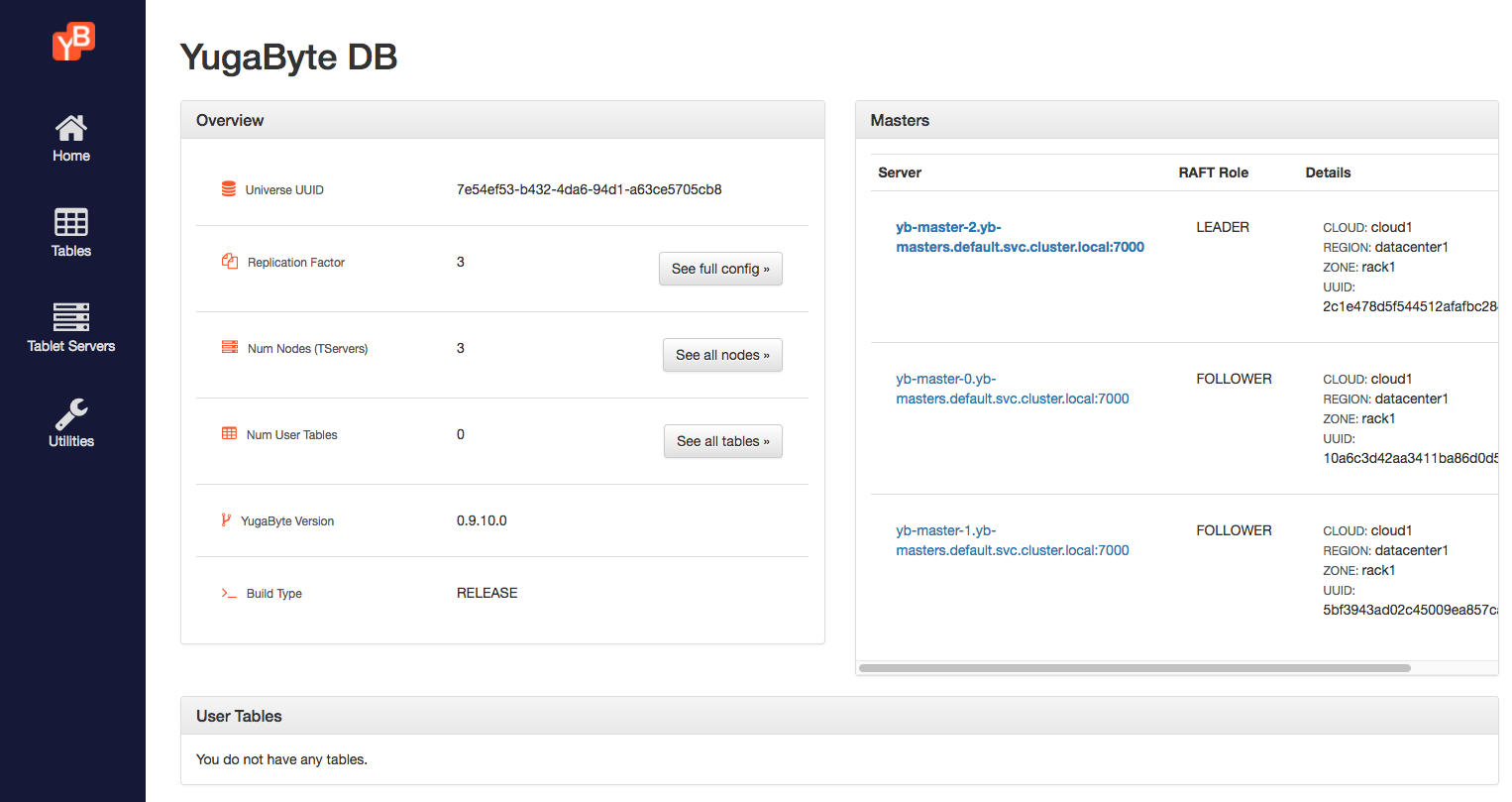
The `yb-master-ui` is a load balancer service which exposes the YugabyteDB universe UI. You can view this by browsing to the URL `http://XX.XX.XX.XX:7000`. It should look as follows:
## Connect to the universe
You can connect to one of the YB-TServer pods and verify that the local disk is mounted into the pods, as follows:
```sh
kubectl exec -it yb-tserver-0 -- bash
```
You can observe the local disks by running the following command:
```sh
[root@yb-tserver-0 yugabyte]# df -kh
Filesystem Size Used Avail Use% Mounted on
...
/dev/sdb 369G 70M 350G 1% /mnt/disk0
/dev/sdc 369G 69M 350G 1% /mnt/disk1
...
```
You can connect to the ycqlsh shell on this universe by running the following command:
```sh
kubectl exec -it yb-tserver-0 -- ycqlsh yb-tserver-0
```
```output.cql
Connected to local cluster at 127.0.0.1:9042.
[ycqlsh 5.0.1 | Cassandra 3.9-SNAPSHOT | CQL spec 3.4.2 | Native protocol v4]
Use HELP for help.
ycqlsh> DESCRIBE KEYSPACES;
system_schema system_auth system
```
## Destroy the cluster
You can destroy the YugabyteDB universe by running the following command:
```sh
kubectl delete -f https://raw.githubusercontent.com/yugabyte/yugabyte-db/master/cloud/kubernetes/yugabyte-statefulset-local-ssd-gke.yaml
```
The preceding command does not destroy the data, and you may not be able to respawn the cluster because there is data left behind on the persistent disks.
You can destroy the node-pool you created by running the following command:
```sh
gcloud container node-pools delete node-pool-8cpu-2ssd --cluster yugabyte --zone=us-west1-b
```
Finally, you can destroy the entire `gcloud` container cluster by running the following command:
```sh
gcloud beta container clusters delete yugabyte --zone us-west1-b
```