You can deploy a YugabyteDB cluster on Azure Kubernetes Service (AKS).
Microsoft's [Azure Kubernetes Service](https://azure.microsoft.com/en-au/services/kubernetes-service/) provides a fully-managed Kubernetes service able to host their applications on containers in the cloud.
## Prerequisites
Before deploying YugabyteDB on AKS, verify that the following components are installed and configured:
- `kubectl`
- For more information, see [Install and Set Up kubectl](https://kubernetes.io/docs/tasks/tools/install-kubectl/).
- [Kubernetes API](https://kubernetes.io/docs/reference/kubernetes-api/)
- Helm 3.4 or later
- For more information, see [Installing Helm](https://helm.sh/docs/intro/install/).
- [Microsoft Azure](https://azure.microsoft.com/en-au/pricing/purchase-options/pay-as-you-go/) account with Pay As You Go enabled.
## Deploy YugabyteDB on an Azure Kubernetes cluster
The following examples are based on using macOS.
### Step 1: Install the Azure CLI
To install the Azure CLI on your local operating system, follow the instructions provided in [Install the Azure CLI](https://docs.microsoft.com/en-us/cli/azure/install-azure-cli?view=azure-cli-latest).
On macOS, you can run the following Homebrew command to install Azure CLI:
```sh
brew install azure-cli
```
After the Azure CLI is installed, use the following command to log in at the command line:
```sh
az login
```
After entering this command, a browser window appears for you to select the Azure credentials you are using.
You are logged into Microsoft Azure and can use the Azure CLI with your subscription.
For more information, see [Azure CLI documentation](https://docs.microsoft.com/en-us/cli/azure/?view=azure-cli-latest).
### Step 2: Create a Resource Group
To create a resource group, you need to choose the location to host it. Run the following command to retrieve a list of the available locations:
```sh
az account list-locations
```
For the purposes of this example, the location is “West US”:
```output.json
{
"displayName": "West US",
"id": "/subscriptions/53f36dd9-85d8-4690-b45b-92733d97e6c3/locations/westus",
"latitude": "37.783",
"longitude": "-122.417",
"name": "westus",
"subscriptionId": null
},
```
Create the resource group by running the following command, specifying the location:
```sh
az group create --name yugabytedbRG --location westus
```
```output.json
{
"id": "/subscriptions/53f36dd9-85d8-4690-b45b-92733d97e6c3/resourceGroups/yugabytedbRG",
"location": "westus",
"managedBy": null,
"name": "yugabytedbRG",
"properties": {
"provisioningState": "Succeeded"
},
"tags": null,
"type": "Microsoft.Resources/resourceGroups"
}
```
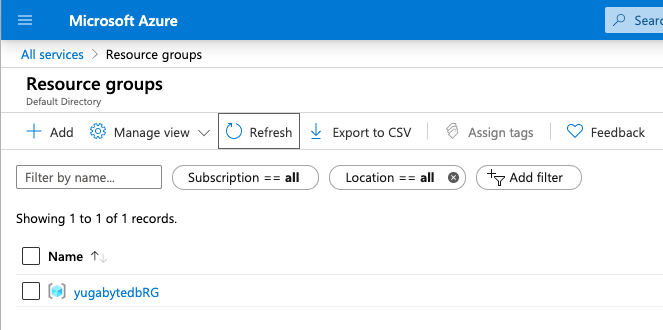
You should be able to see the yugabytedbRG resource group in the Azure portal by clicking **Resource groups**, as per the following illustration:
### Step 3: Create the Kubernetes cluster
Create a Kubernetes cluster by running the following command:
```sh
az aks create \
--resource-group yugabytedbRG \
--name yugabytedbAKSCluster \
--node-count 3 \
--node-vm-size Standard_D4_v3 \
--enable-addons monitoring \
--generate-ssh-keys
```
Note that because you have not [specified any zones](https://docs.microsoft.com/en-us/azure/aks/availability-zones) in the preceding command, the AKS control plane components for the cluster will be deployed in a single zone.
The `--generate-ssh-keys` argument auto-generates SSH public and private key files to be stored in the `~/.ssh` directory.
Expect to see the following output:
```output
Finished service principal creation[###################] 100.0000%
- Running ..
```
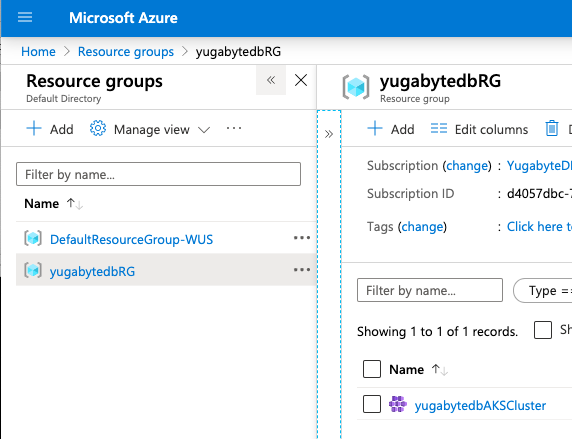
`yugabytedbAKSCluster` should be available in the Azure UI, as per the following illustration:
To create the cluster and use your own SSH keys, run the following command:
```sh
ssh-keygen -t rsa -b 2048
```
Follow the prompts to create the ` id_rsa ` and `id_rsa.pub` files, and record their location. Run the following command:
```sh
az aks create \
--resource-group yugabytedbRG \
--name yugabytedbAKSCluster \
--node-count 3 \
--node-vm-size Standard_D4_v3 \
--enable-addons monitoring \
--ssh-key-value id_rsa.pub
```
After the cluster is installed, point `kubectl` to the cluster by running the following command:
```sh
az aks get-credentials --resource-group yugabytedbRG --name yugabytedbAKSCluster
```
You should see an output similar to the following:
```output
Merged "yugabytedbAKSCluster" as current context in /Users/yugabyte-user/.kube/config
```
If you generated your own SSH keys, point `kubectl` to the cluster by running the following command instead:
```sh
az aks get-credentials --resource-group yugabytedbRG --name yugabytedbAKSCluster -ssh-key-file id_rsa
```
Verify that the cluster nodes are running using the following command:
```sh
kubectl get nodes
```
You should see an output similar to the following:

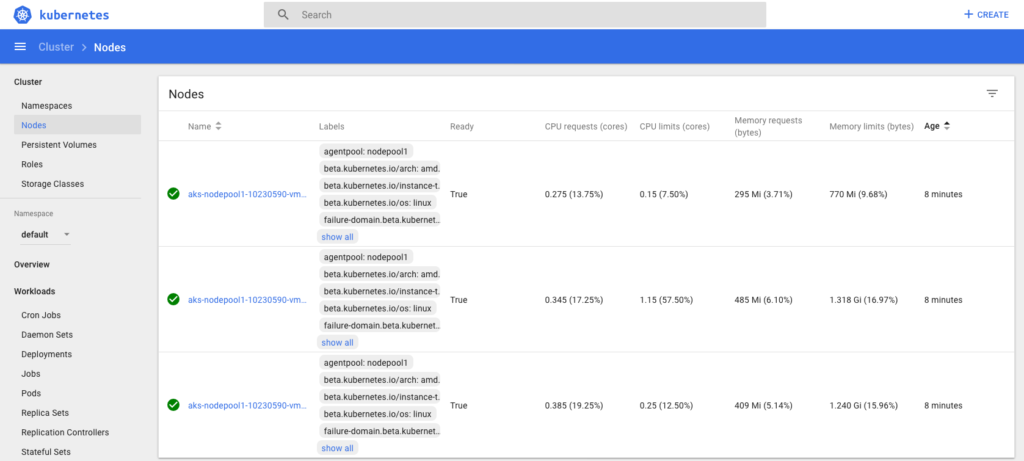
You can also view the details of the cluster in the Kubernetes dashboard by running the following two commands:
```sh
kubectl create clusterrolebinding yb-kubernetes-dashboard --clusterrole=cluster-admin --serviceaccount=kube-system:kubernetes-dashboard --user=clusterUser
```
```sh
az aks browse --resource-group yugabytedbRG --name yugabytedbAKSCluster
```
A browser window appears where you can view the Kubernetes dashboard, as per the following illustration:
### Step 4: Install YugabyteDB using Helm chart
You need to perform a number of steps to deploy YugabyteDB using Helm chart:
1. Add the YugabyteDB `charts` repository by running the following commands:
```sh
helm repo add yugabytedb https://charts.yugabyte.com
```
Get the latest update from the `charts` repository by running the following `helm` command:
```sh
helm repo update
```
```output
Hang tight while we grab the latest from your chart repositories...
...Successfully got an update from the "yugabytedb" chart repository
```
```sh
helm search repo yugabytedb/yugabyte --version {{}}
```
```output
NAME CHART VERSION APP VERSION DESCRIPTION
yugabytedb/yugabyte {{}} {{}} YugabyteDB is the high-performance distributed ...
```
1. To create the `yb-demo` namespace, run the following command.
```sh
kubectl create namespace yb-demo
```
The following message should appear:
```output
namespace/yb-demo created
```
1. Install YugabyteDB in the `yb-demo` namespace by running the following commands to specify settings for resource constrained environments:
```sh
helm install yb-demo -n yb-demo yugabytedb/yugabyte \
--version {{}} \
--set storage.master.count=1 \
--set storage.tserver.count=1 \
--set storage.master.storageClass=default \
--set storage.tserver.storageClass=default \
--set resource.master.requests.cpu=1 \
--set resource.master.requests.memory=1Gi \
--set resource.tserver.requests.cpu=1 \
--set resource.tserver.requests.memory=1Gi \
--set resource.master.limits.cpu=1 \
--set resource.master.limits.memory=1Gi \
--set resource.tserver.limits.cpu=1 \
--set resource.tserver.limits.memory=1Gi \
--timeout=15m
```
Depending on your resources, it may take some time to get everything installed, deployed, and configured.
After you see a `success` message, you can verify that the YugabyteDB pods are running by using the following command:
```sh
kubectl get pods --namespace yb-demo
```
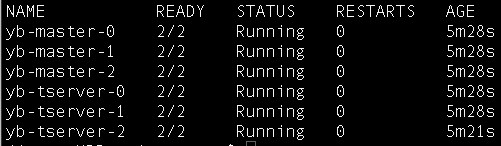
To access the YugabyteDB Admin UI, run the following command to locate the **External IP** entry associated with `yb-master-ui` and port `7000`:
```sh
kubectl get services --namespace yb-demo
```
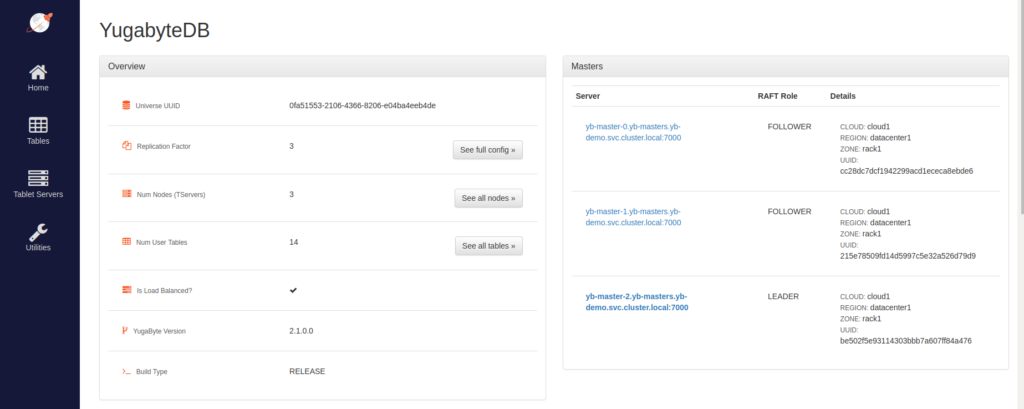
Navigate to `http://:7000`, replacing `` with your external IP address. You should see the following: